Portrait sketches
Turn clear portraits into pencil-style drawings while keeping expression and face angle.
Turn a photo into a pencil, ink, or storyboard-style sketch. Keep the useful details from the original image, such as pose, face angle, object shape, room layout, or lighting. Use it for visual drafts that need more control than a one-click filter.
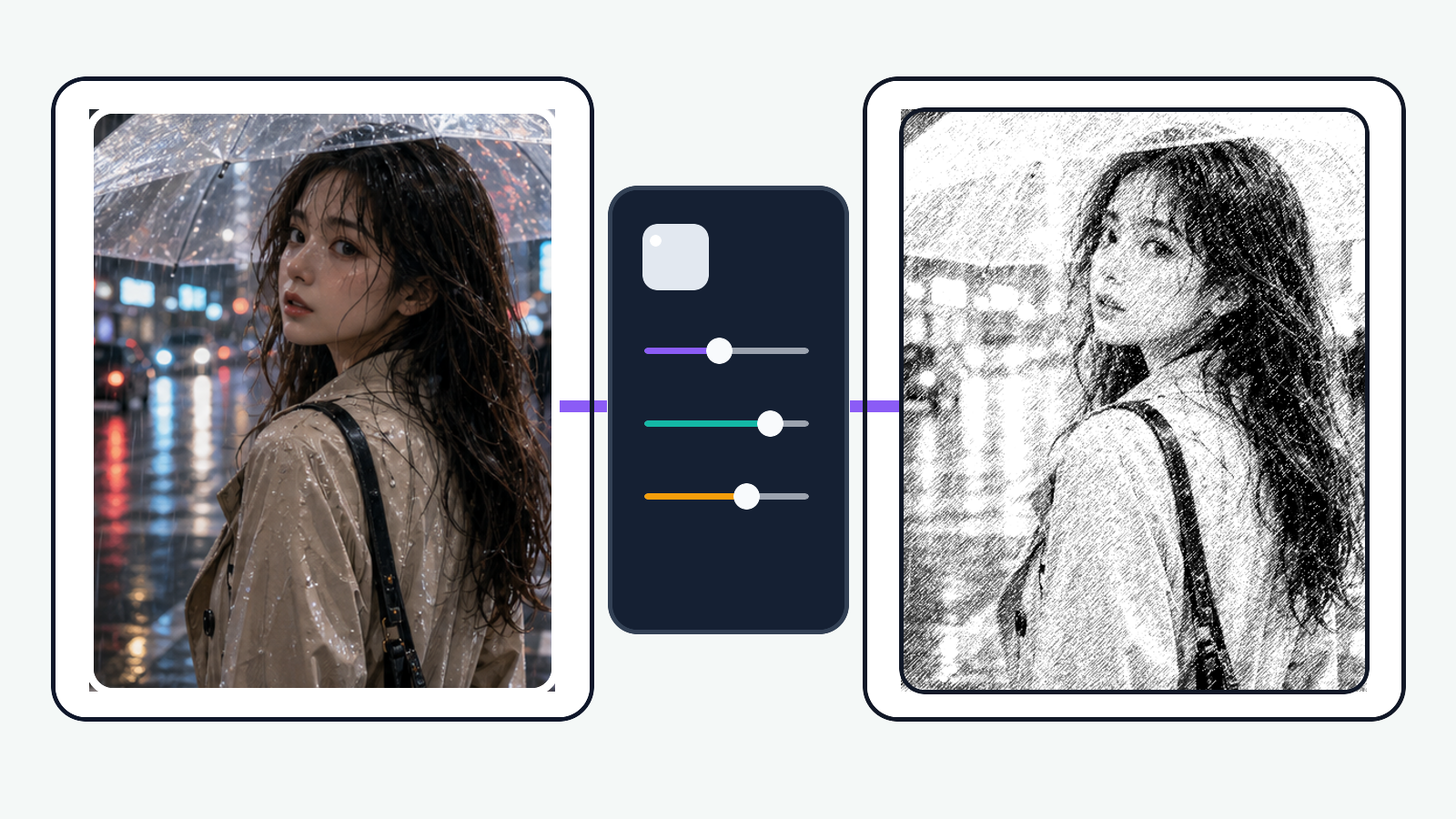
Upload a photo, choose a sketch treatment, and generate a result you can compare with the source.
Use a clear photo, or describe the source in the sketch notes.
Choose a line style, page shape, and image model.
Sketch style
Output format
Say what to make, what to keep, and what to simplify.
Sign in before generation. Your setup stays here.
Start by naming what the photo contributes: face angle, pose, product outline, room layout, or lighting. The sketch should protect that value while reducing noise.
A portrait sketch, ink study, and storyboard thumbnail need different line weight. Pick the finish that matches where the image goes next.
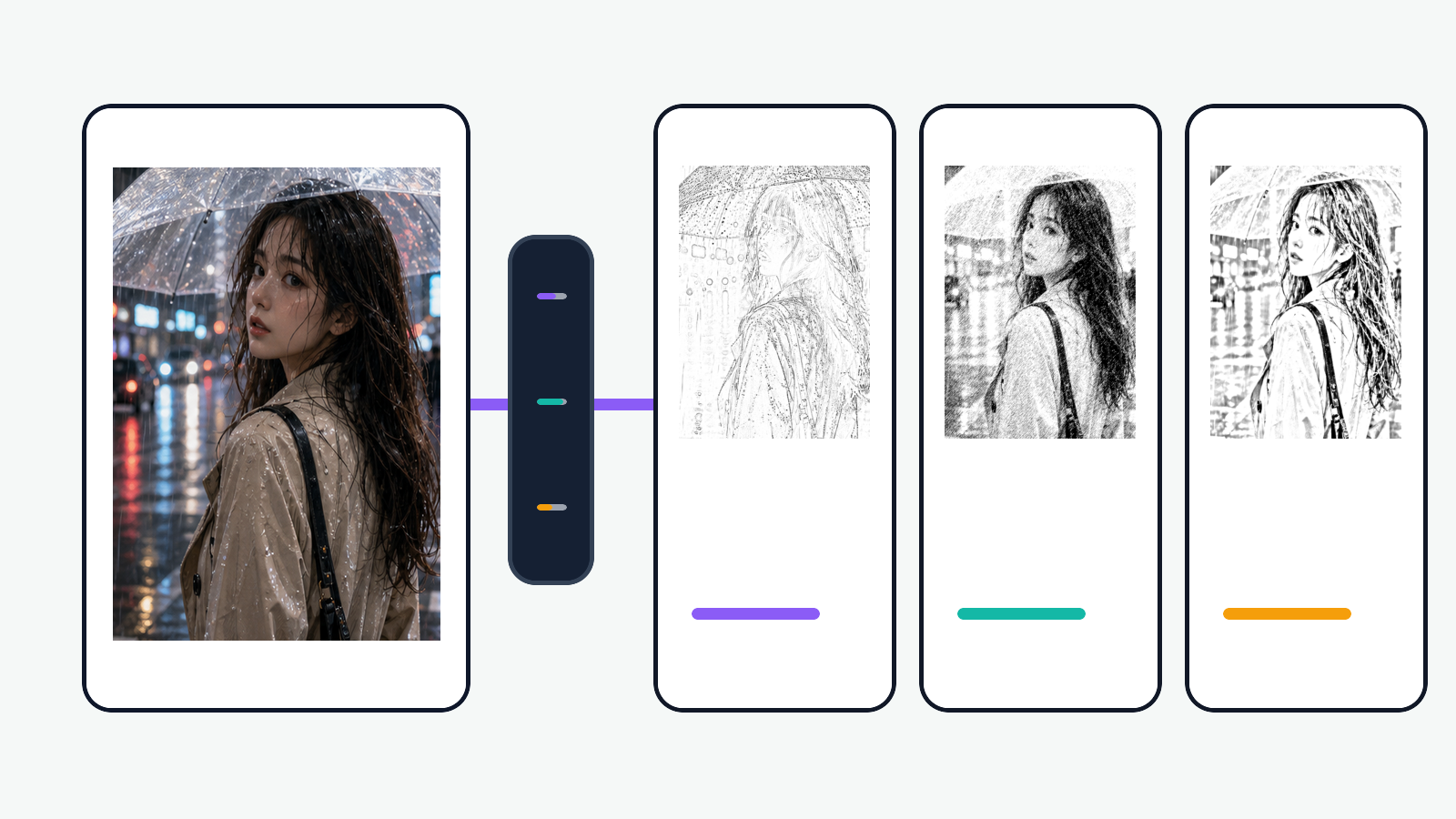
Download the generated sketch, regenerate with tighter instructions, or continue into comic, caption, and panel layout tools when the draft needs a next step.
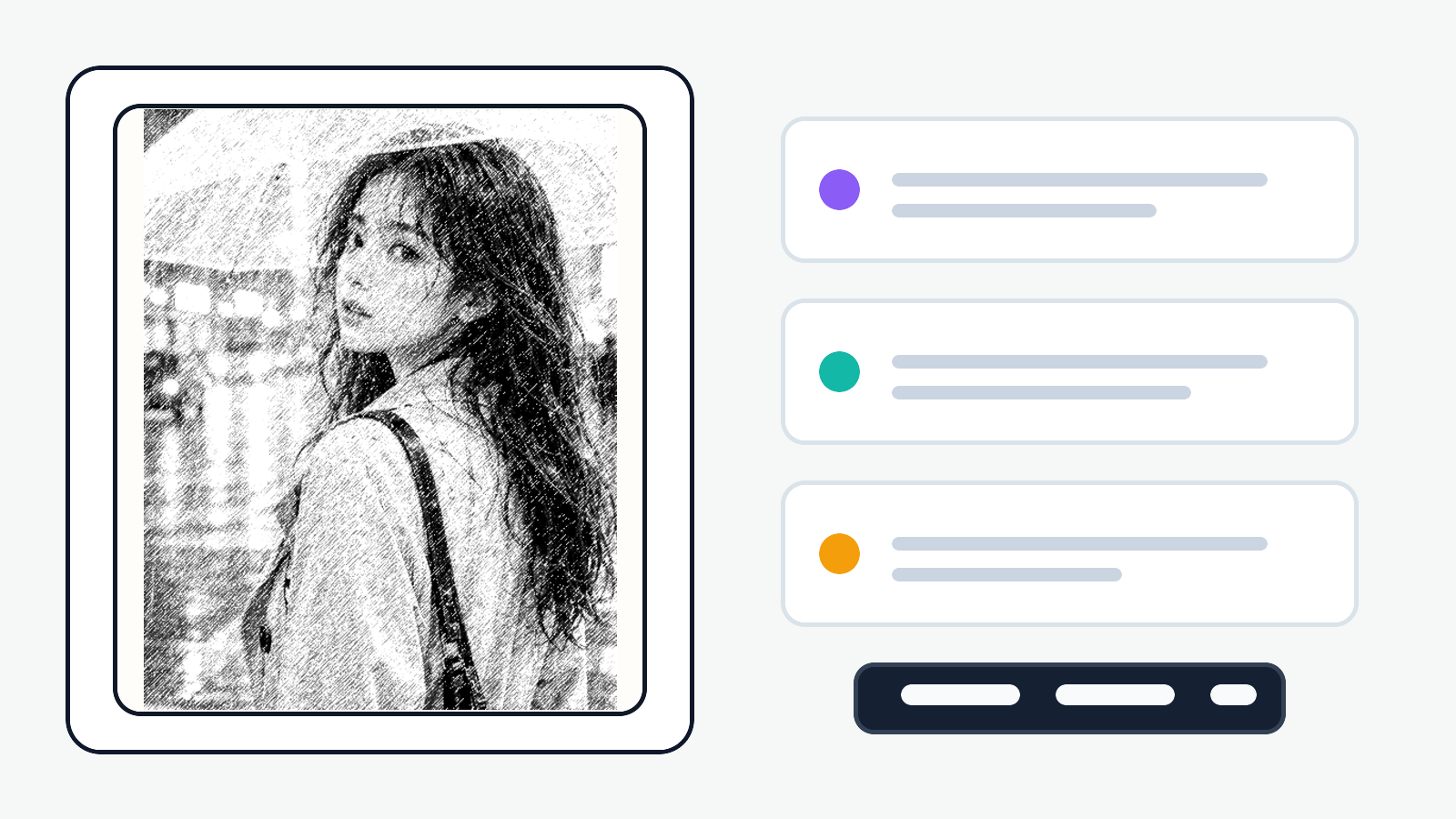
Start with a real photo, turn it into a sketch, and move the draft into the next job: portrait review, product concepting, storyboard planning, or classroom material.
Turn clear portraits into pencil-style drawings while keeping expression and face angle.
Convert product photos into clean outline studies for moodboards and pitch visuals.
Use real poses, rooms, and streets as quick scene sketches before panel planning.
Make a photo feel drawn for worksheets, explainers, thumbnails, or creative prompts.
Yes. Upload a JPG, PNG, or WEBP photo. When the selected model supports reference images, ComicsAI uses that photo as the visual guide.
Add one clear goal, such as portrait sketch, product outline, room draft, or storyboard pose.
Use a clear photo with one main subject, enough light, and visible details. Portraits, products, poses, rooms, pets, streets, and reference shots can all work.
Very blurry photos, tiny faces, heavy motion blur, or crowded backgrounds usually need stronger cleanup notes.
A basic filter applies one fixed effect. Photo to Sketch AI uses your photo, sketch style, details to preserve, output format, and cleanup notes.
That makes it better for working drafts where pose, likeness, shape, lighting, or scene layout still need to stay recognizable.
Yes, but tell it exactly what to protect. Write details like keep the face angle, preserve the hand pose, keep the chair outline, or simplify the background only.
The clearer the preservation note, the easier it is to judge the result.
Choose pencil sketch for softer portraits and lifestyle images, ink line study for products or clean object edges, and storyboard rough for scenes, poses, and early comic planning. If the first result feels too dark or too busy, regenerate with simpler background and lighter shading in the cleanup field.
Goal is the job for the sketch. Preserve is what must stay recognizable. Cleanup is what should be reduced.
Example: turn this room photo into a clean interior sketch, preserve furniture placement and window light, remove small background clutter.
Yes. It works beyond portraits. Product teams can make outline studies, interior designers can turn room photos into draft visuals, teachers can create worksheet-style drawings, and comic creators can convert poses or street references into storyboard material.
Regenerate with narrower instructions instead of adding a long prompt. Ask for lighter pencil shading, fewer background lines, stronger object edges, or closer facial likeness. If the photo is noisy, crop around the subject first or upload a clearer source before trying another style.
You can plan the sketch notes without signing in, but generation requires an account. If you click Generate while signed out, ComicsAI takes you to login and brings you back to the tool. Signed-in users also see model availability and recent sketch results.
Use images you own or have permission to edit, especially for client or brand work. The sketch still comes from your source photo and an AI model, so review likeness, trademarks, private details, and your plan terms before publishing or selling the result.
Treat every upload as an online image-generation request. Avoid private documents, confidential client material, medical images, financial records, or photos you would not want processed by a web tool. For sensitive work, use a sanitized crop or a non-sensitive reference image instead.