Use a clear source
Crowded, dark, or low-resolution photos usually need cropping before conversion.
Image Tools
Turn a photo or image into a clean doodle drawing while keeping the subject easy to recognize. Use it for playful portraits, pet doodles, simple coloring pages, wall-art drafts, stickers, and quick visual ideas that should feel hand drawn rather than filtered.
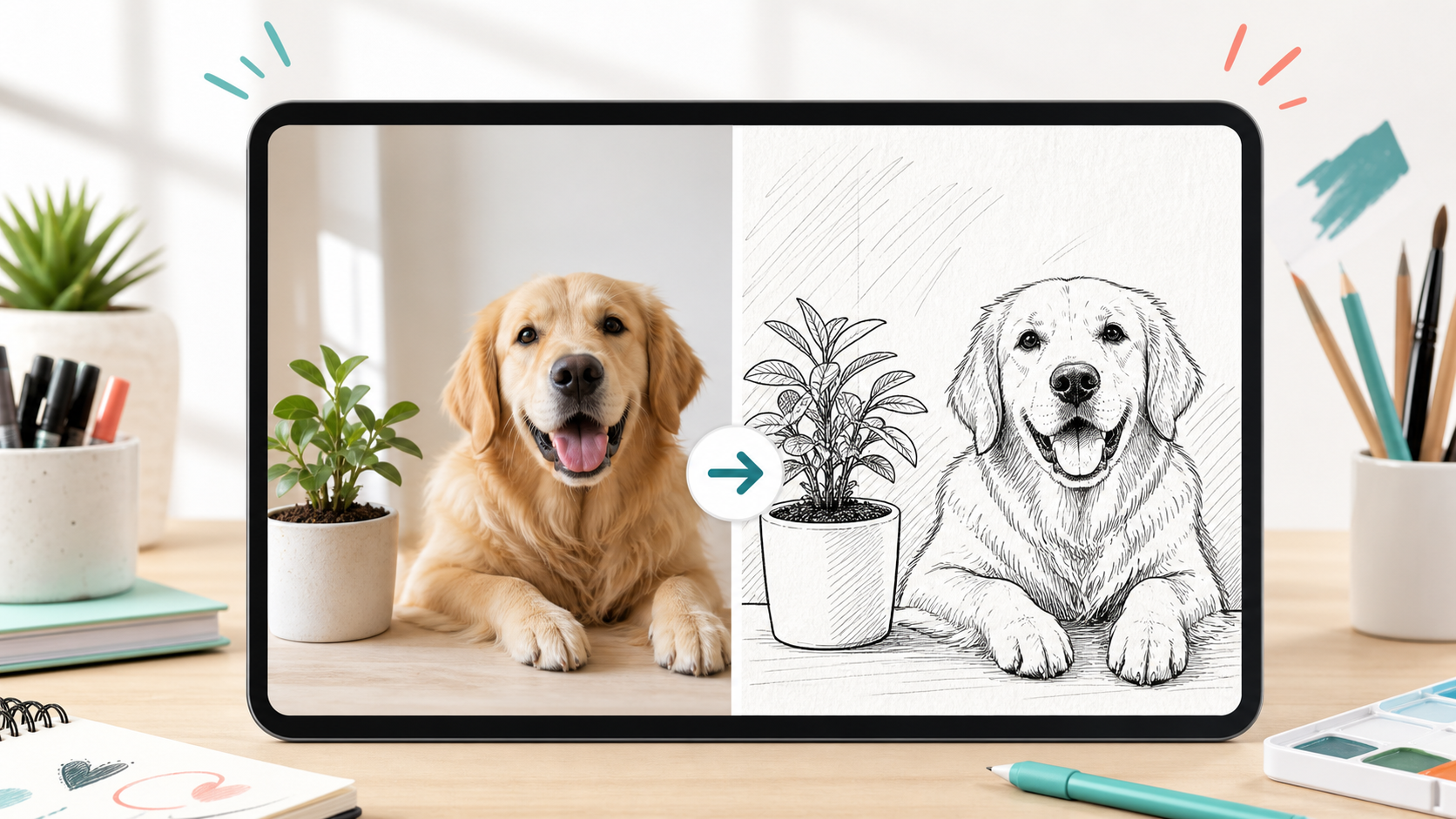
Convert photo to doodle
Start with a real photo or a short image brief, then generate a clean doodle for coloring pages, wall art, stickers, or quick visual drafts.
Your generated doodle will replace this sample.
Source check
Doodle conversion works best when the subject, rights, and cleanup goal are clear before generation.
Crowded, dark, or low-resolution photos usually need cropping before conversion.
Use photos you own or have permission to transform, especially for commercial work.
If the doodle is busy, simplify the background or tighten the details to keep.
Coloring page
Use a clear source image and ask for open outlines. The result should be simple enough to print, color, and reuse without cleaning up a dense sketch.
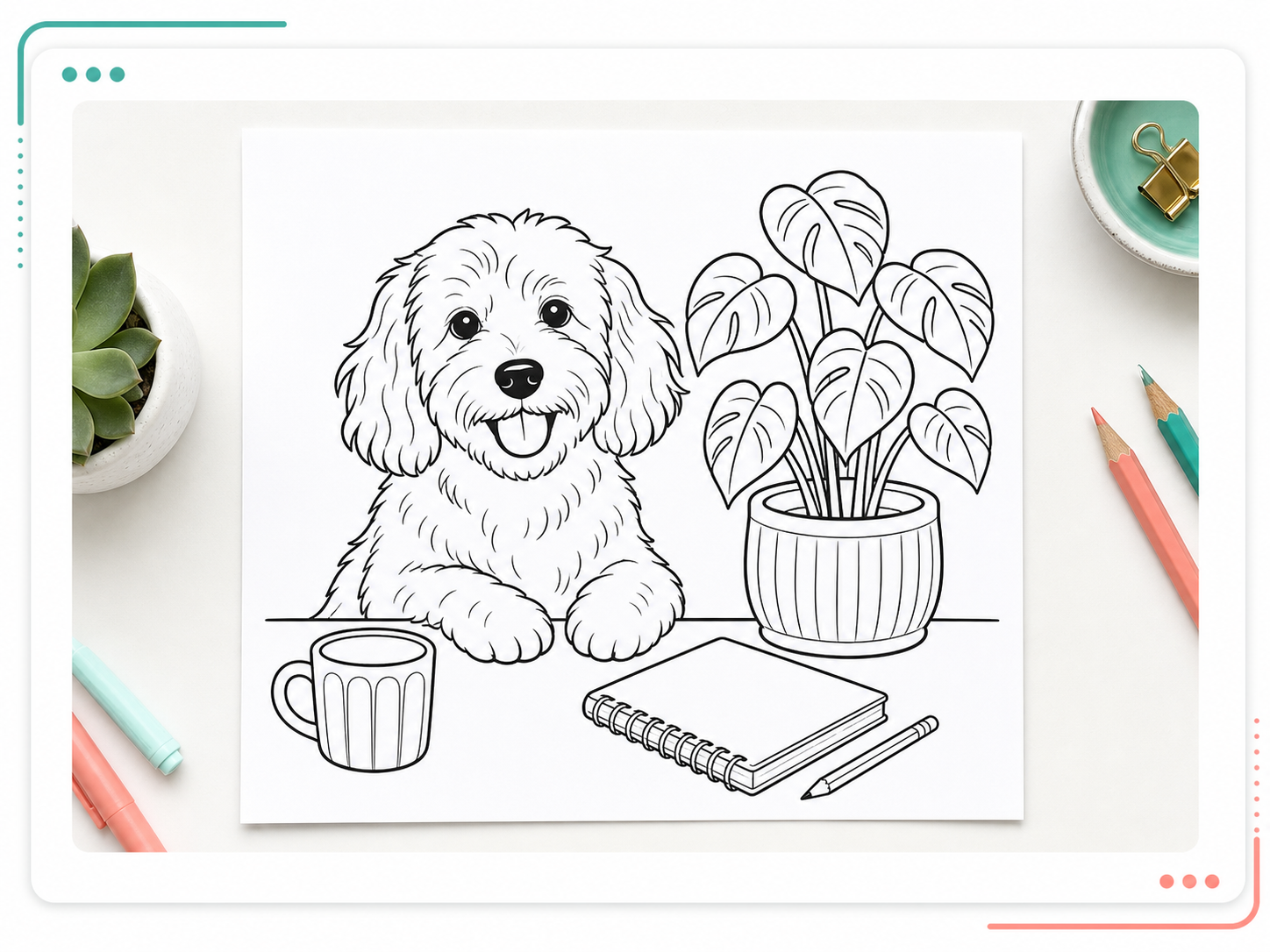
Wall art
For framed art or posters, the converter favors silhouette, balance, and white space over tiny photo texture.
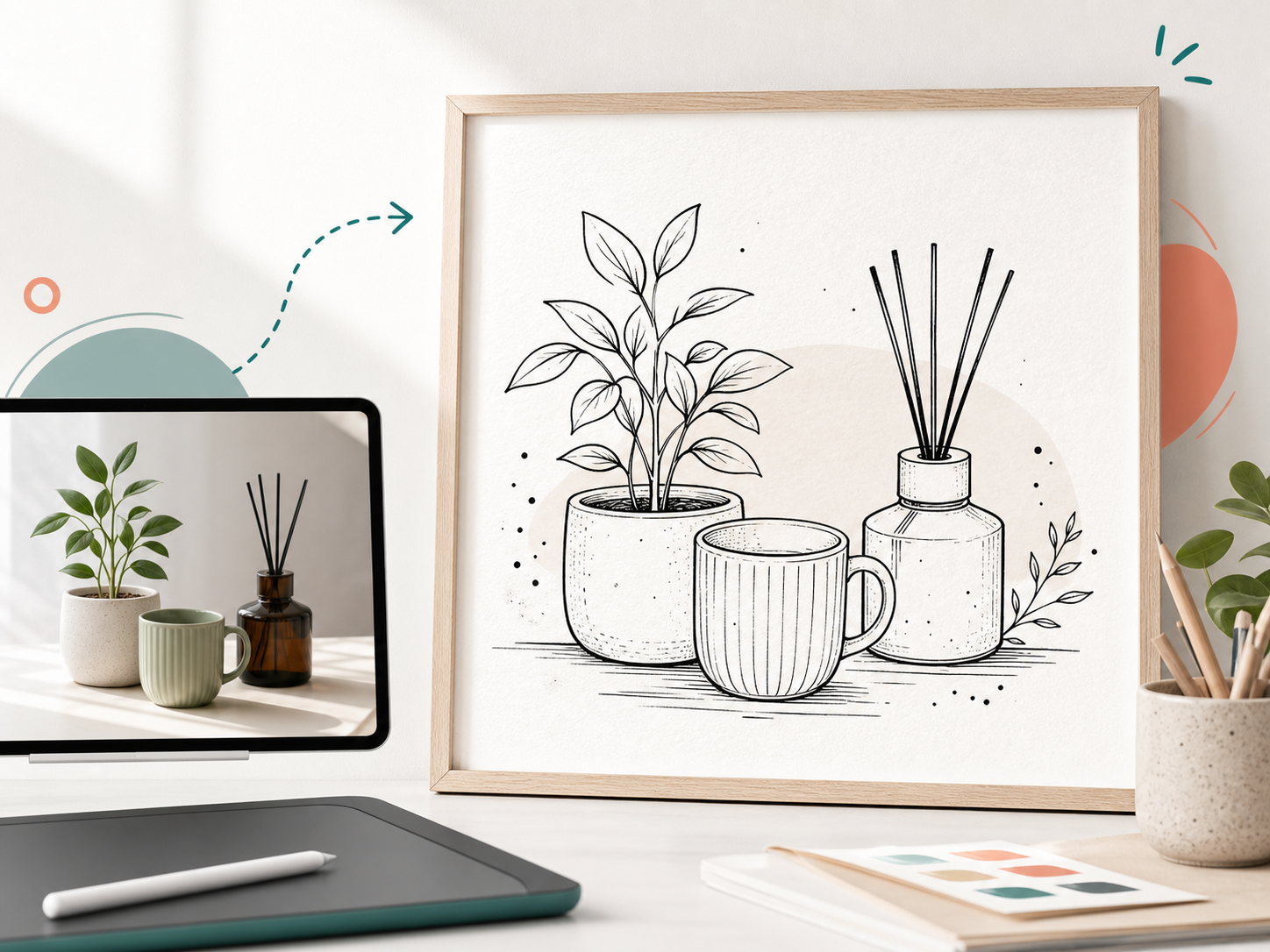
Pets and products
Name the details that matter before generation: a pet expression, a product outline, a room layout, or the shape of an object.
How it works
Use this as a quick check. If the first result looks too busy, change one setting and regenerate.
Choose a pet, portrait, product, room, or object image.
You get
The first draft has a clearer subject to simplify.
Select doodle drawing, coloring page, or wall-art draft.
You get
You get cleaner lines for printing, sharing, or editing.
Review the output for clean lines and open white space.
You get
Open, save, share, or regenerate with a tighter note.
Before you generate
These are the checks that affect the final image: source quality, output type, regeneration, and usage rights.
A clean doodle drawing from your photo, with the main subject still recognizable.
Use one clear subject, good lighting, and a background that can be simplified.
Yes. Choose the coloring page mode and keep the request focused on black outlines and open spaces.
Yes. Use fewer details, stronger silhouettes, and balanced white space for a cleaner print.
Regenerate when the doodle is too crowded, loses the subject, or adds unwanted text.
Use source photos you own or have permission to transform. Review account terms, and avoid private likenesses, brand marks, or protected characters without rights.
A photo to doodle converter turns a source photo or image into a simple hand-drawn style picture. The useful version keeps the main subject recognizable while reducing background noise, photo texture, and small details into clean doodle lines.
Use a clear photo with one main subject, then ask for clean black outlines, white paper, open spaces, and minimal shading. Avoid prompts that ask for realistic sketch texture, because heavy gray marks can make a coloring page harder to use.
Yes, if the picture has a strong subject or simple composition. Ask for a clean doodle drawing with balanced white space, fewer background details, and a print-friendly look. Review the result before framing or selling it.
Upload a source image, choose the use case, and generate a clean doodle without leaving this page.