Image model by OpenAI

GPT Image 2.5

Create an image from a description, or upload one and keep editing. GPT Image 2.5 comes in two versions: Flare focuses on speed, while Sunburst focuses on precise edits.

Updated October 12, 2026

Flare

Try Flare when you want to explore compositions and styles quickly.

Sunburst

Try Sunburst when you need careful edits that preserve reference details. OpenAI says generation takes longer.

Make a new image, or work on one you already have

Start with a description, or upload a character image or sketch to edit. Both versions support image editing, transparent backgrounds and quality settings. For comics, covers, character sketches and launch posters are useful places to start experimenting.

ComicsAI uses Sunburst at Low quality for free generations and Medium for paid generations. Some review images below use High quality, so results can differ.

A few details worth a closer look

Check whether a recurring character’s face and clothes stay the same, and whether props appear in the right numbers. Zoom in on small text, hands and edited areas. Attractive images can still contain incorrect text or facts; check comic continuity panel by panel.

Next to GPT Image 2

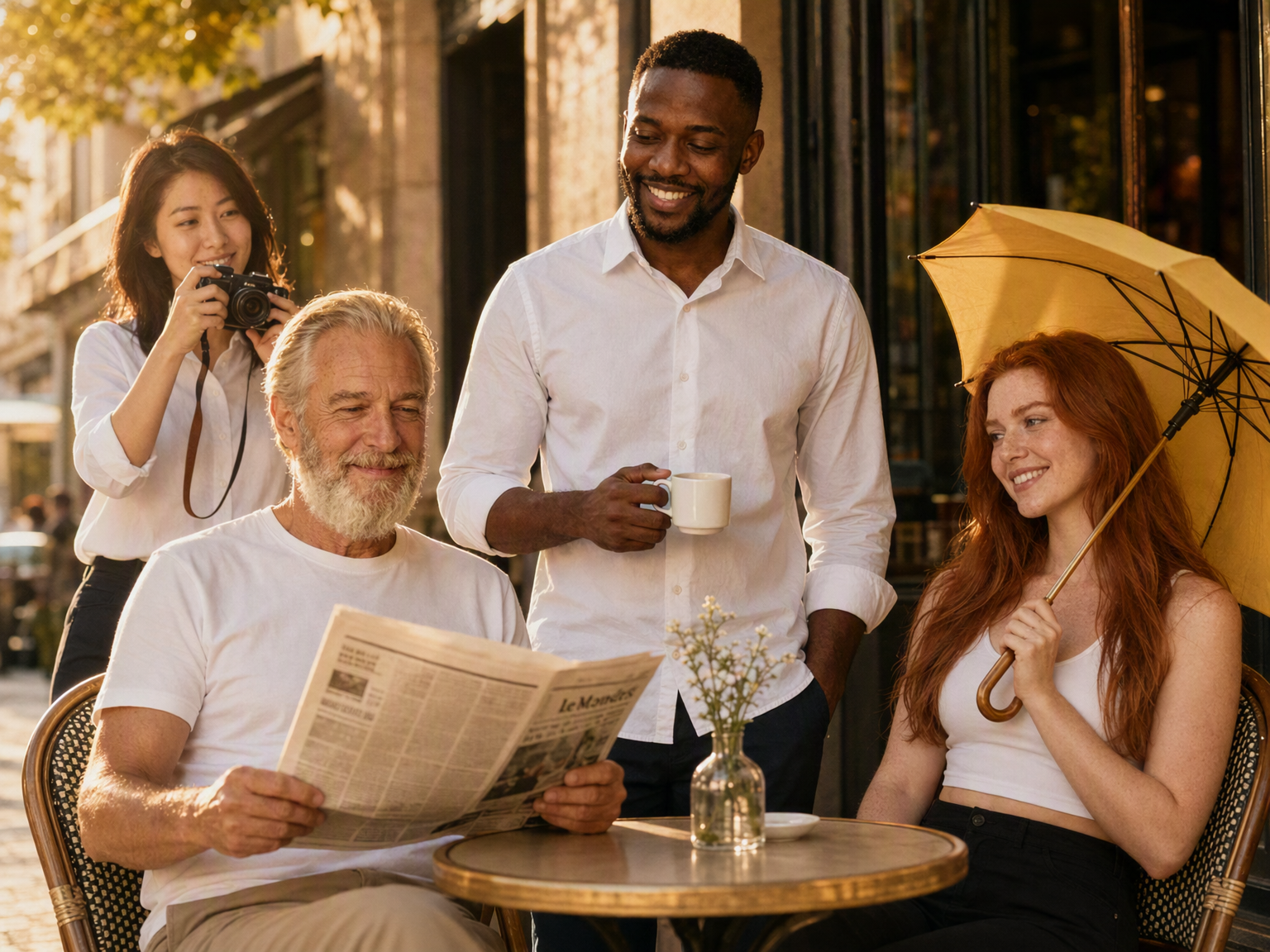
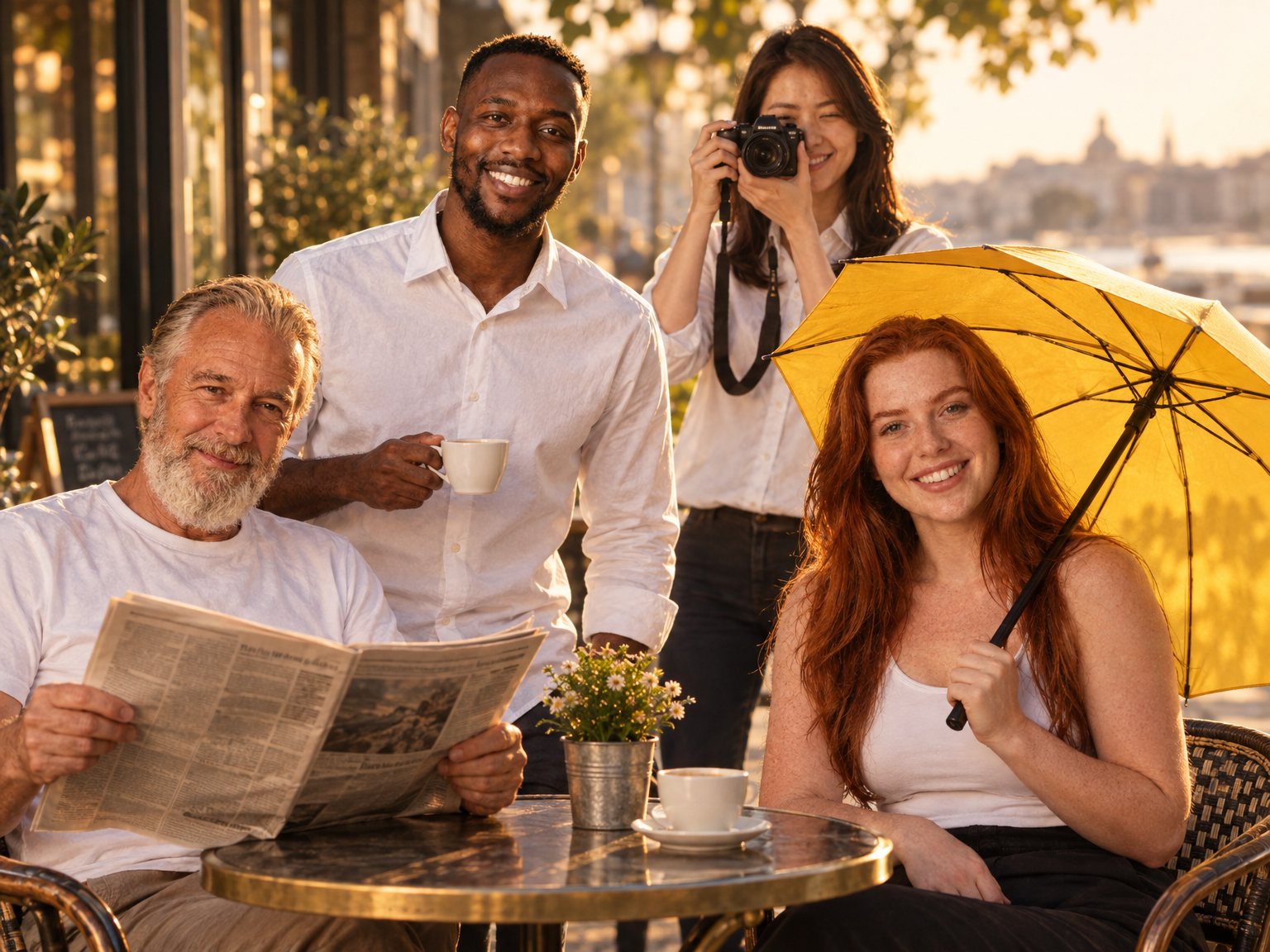
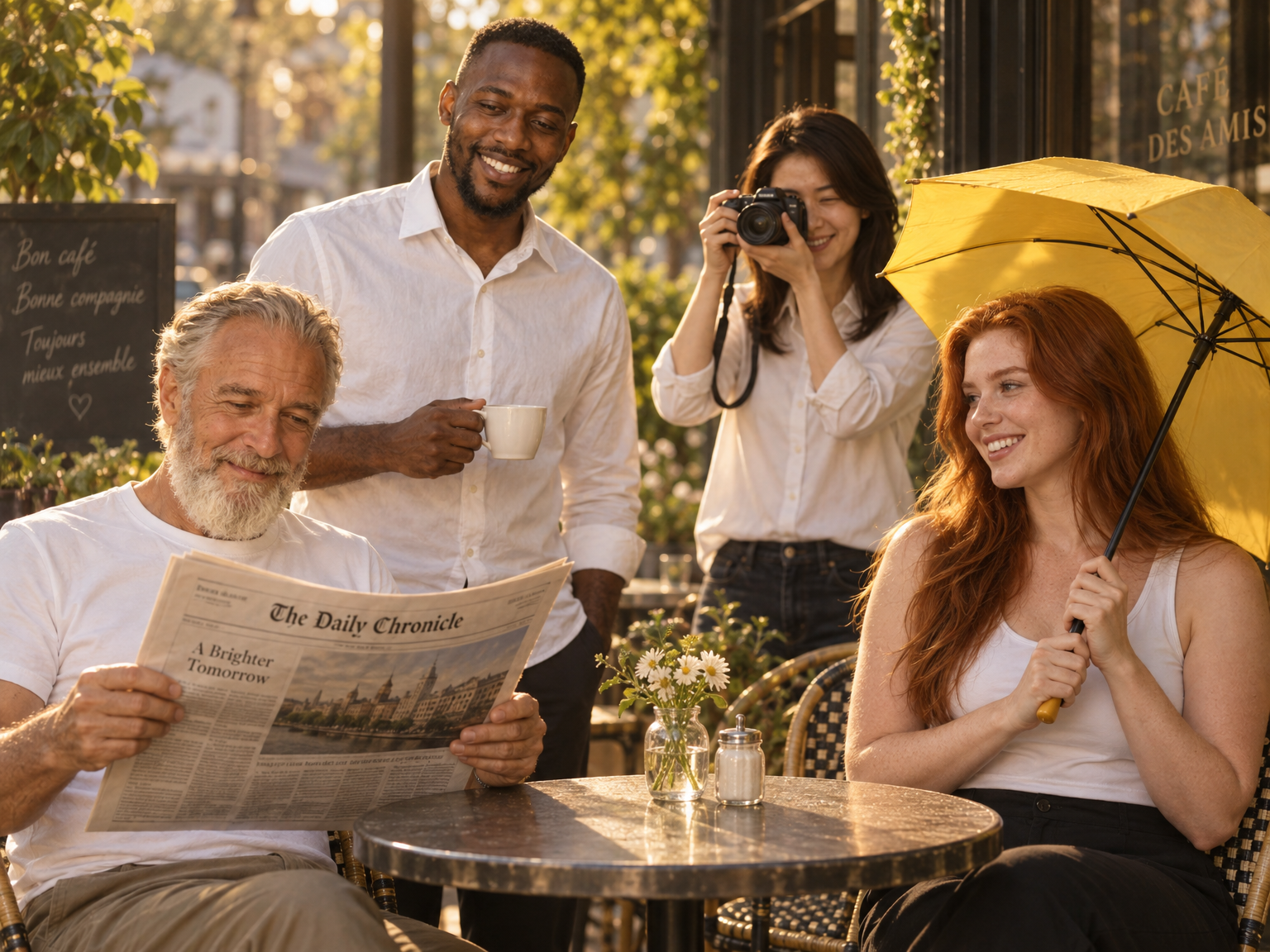
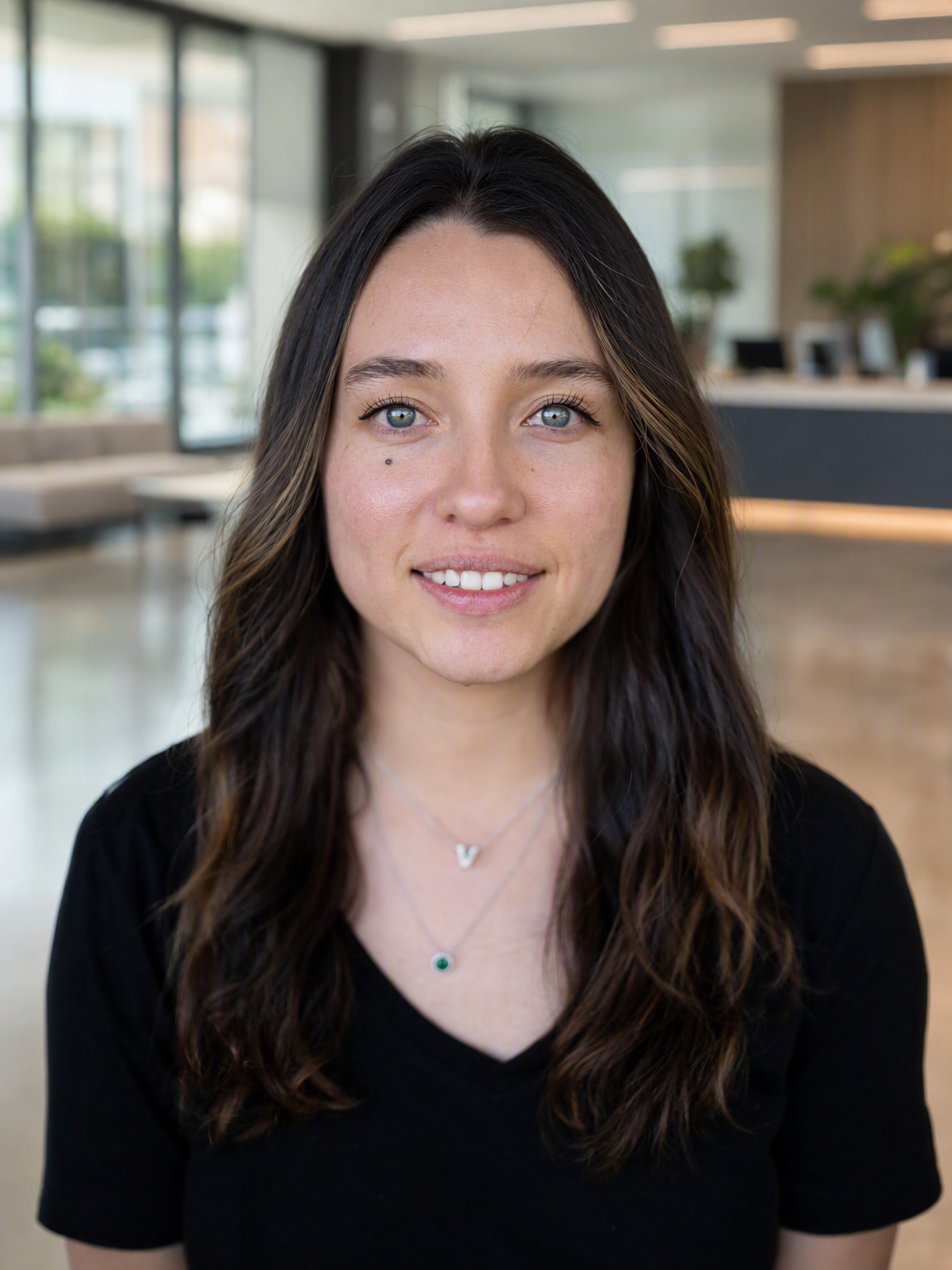
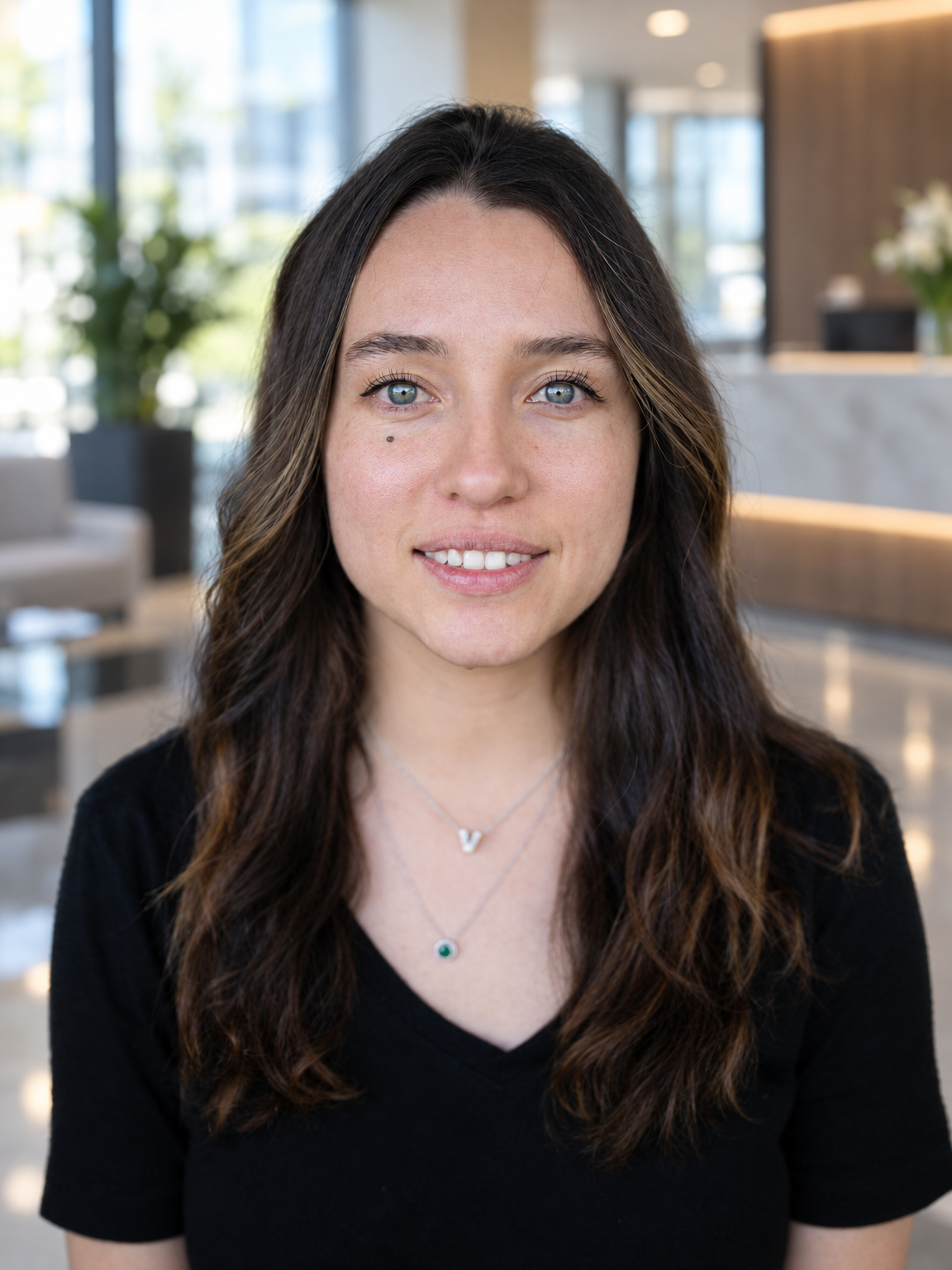
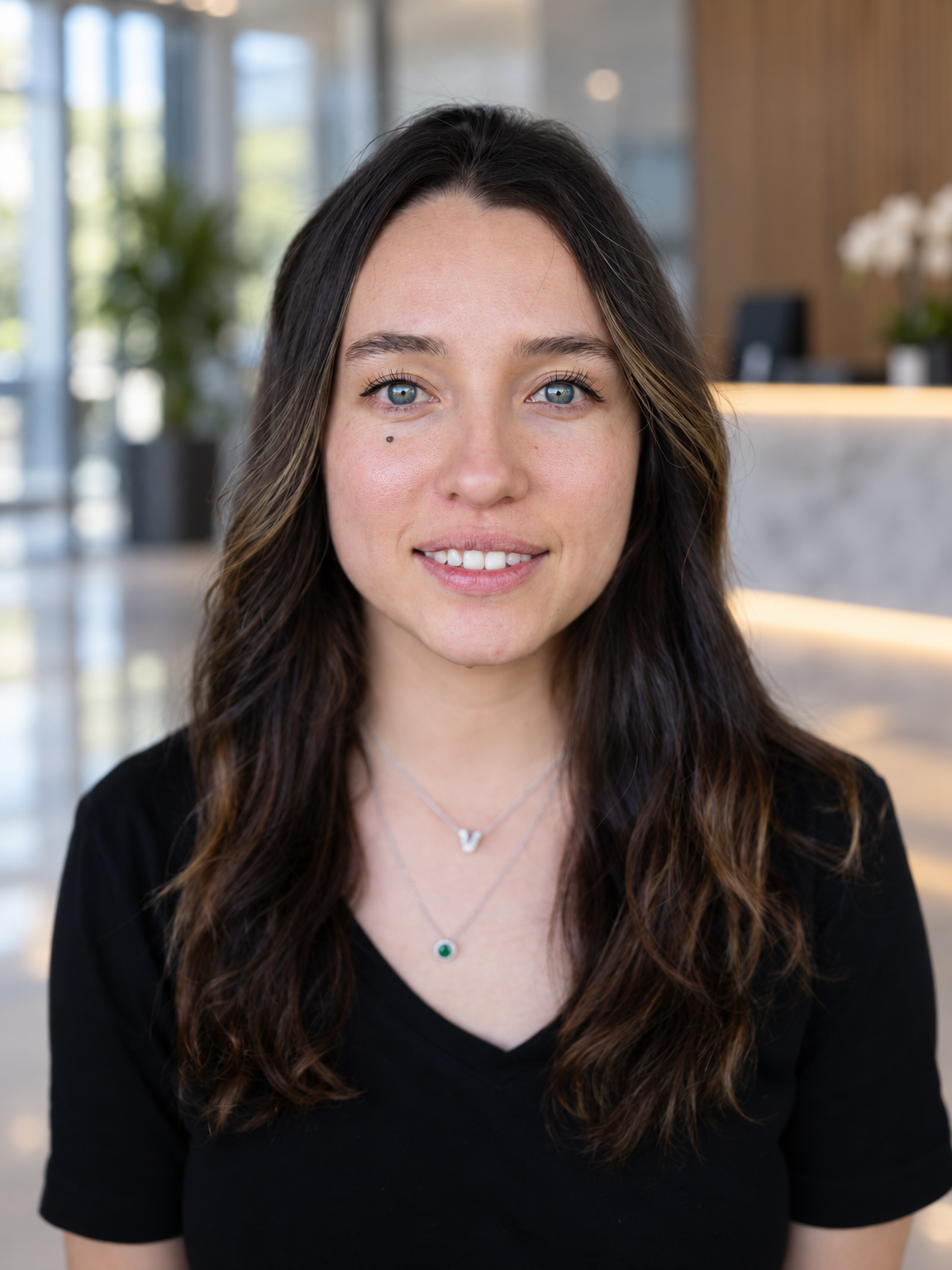
The same description can produce quite different images. Here are three examples covering text, group scenes and background changes, from HummingBytes’ published review. Open the images for a closer look, or follow the review link for the full prompt.

How these images were tested

HummingBytes ran 16 tasks on September 8–9, 2026, with matching English prompts, references, dimensions and High quality. Each task shows one image per model, reportedly without retouching. These examples show specific differences, rather than what to expect on every run.

How long does an image take?

Across 19 completed requests per model, HummingBytes recorded averages of 128.4 seconds for GPT Image 2, 25.1 for Flare and 36.3 for Sunburst. The older model used Azure; 2.5 used OpenAI. Times include app processing and leave out failed requests. Your wait can differ.

HummingBytes · Read the review and prompt
How does it compare with Nano Banana?

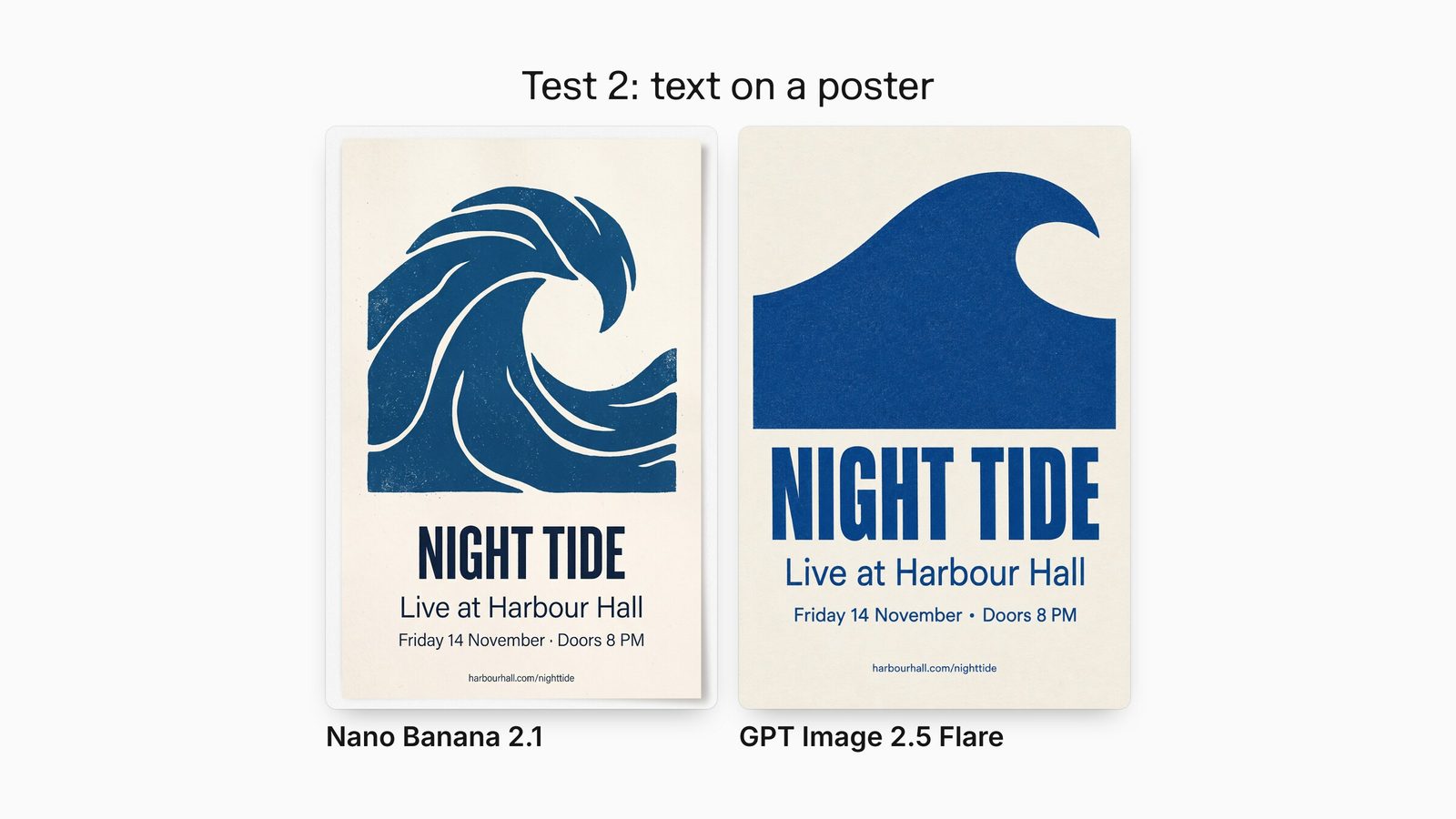
These two examples come from Fuser’s review of Flare and Nano Banana 2.1. The prompts match, but the settings differ: Nano Banana used its 2K default; Flare used Auto quality at smaller sizes. Keep that difference in mind when comparing the images.

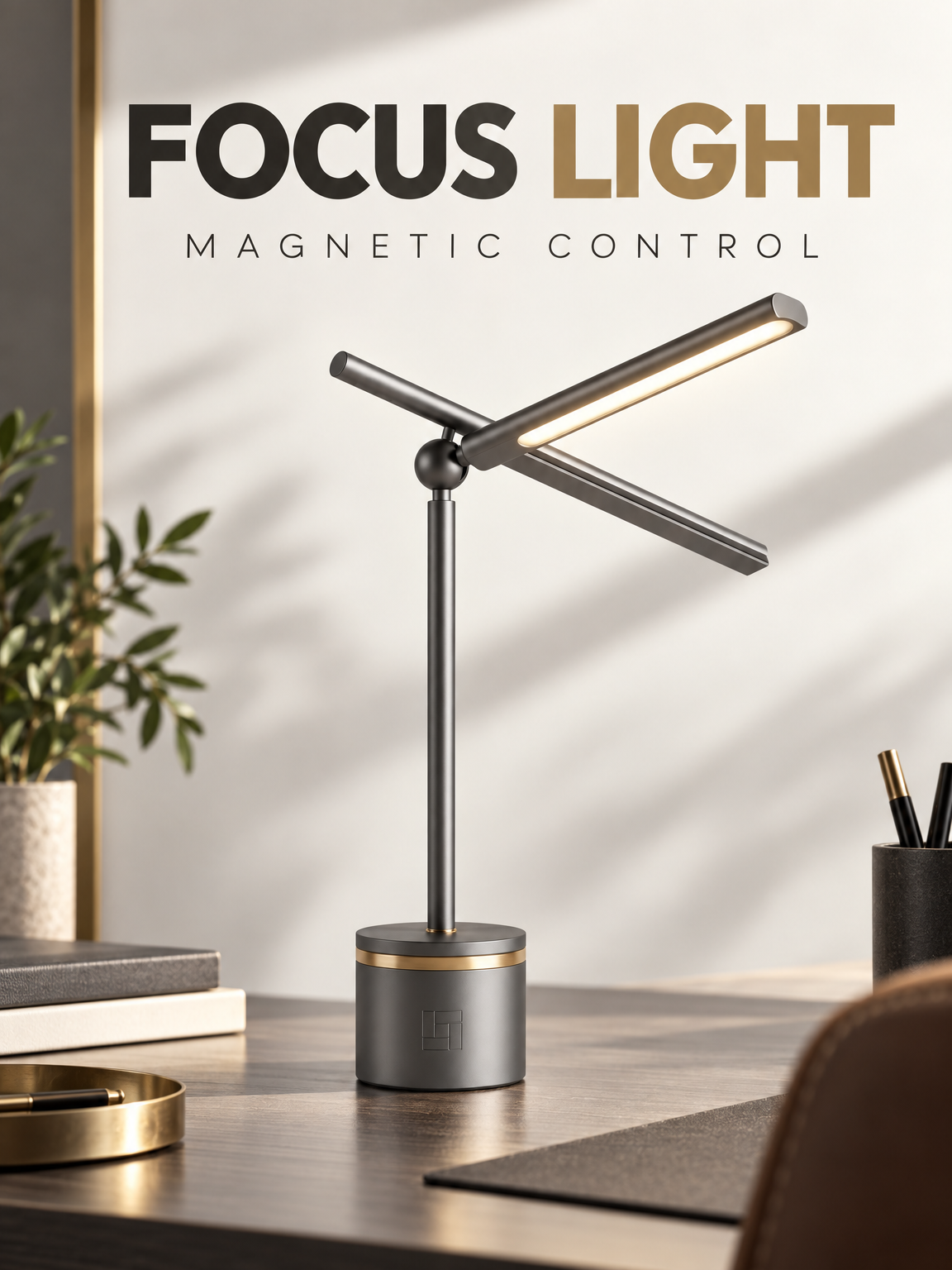
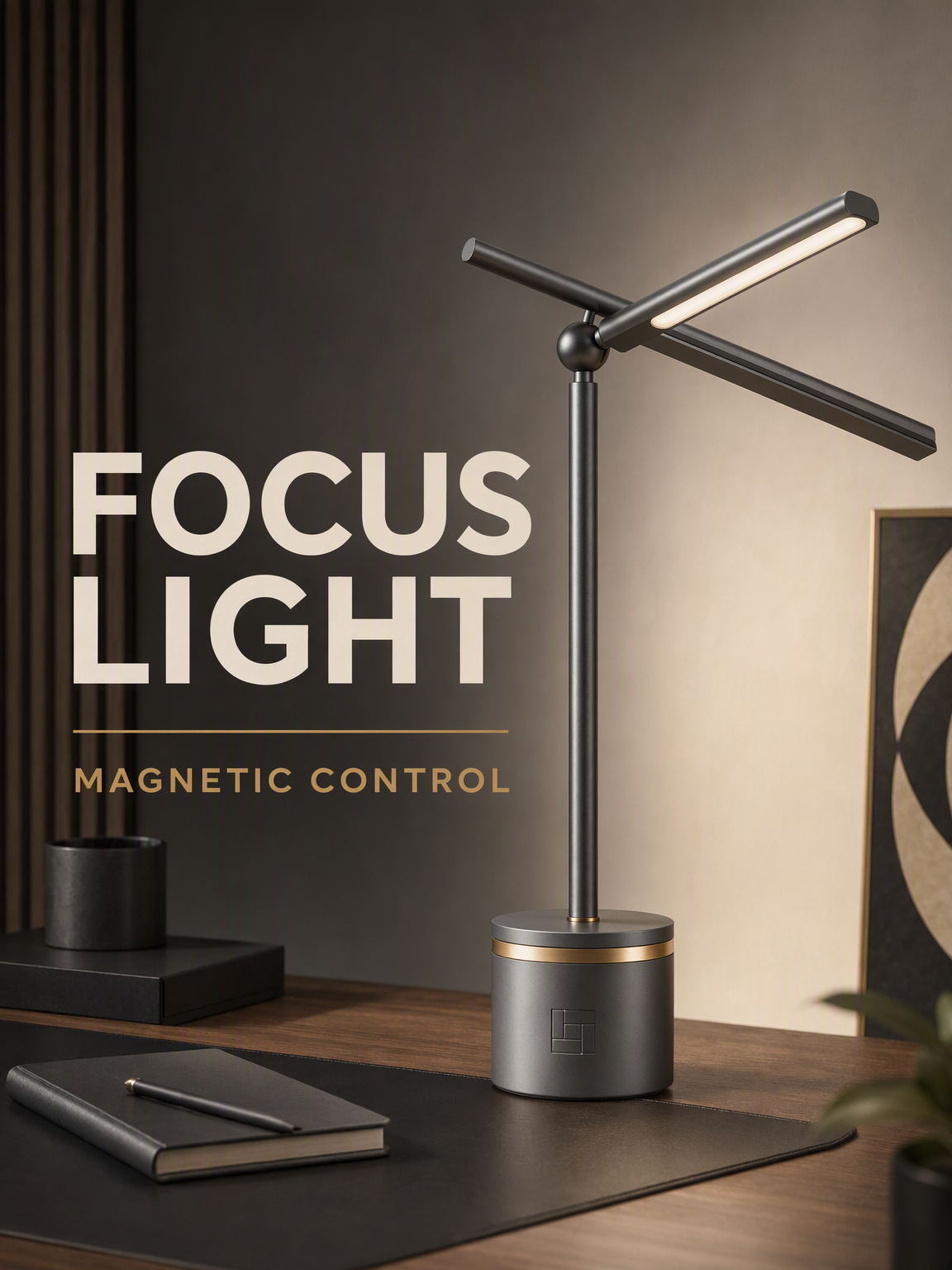
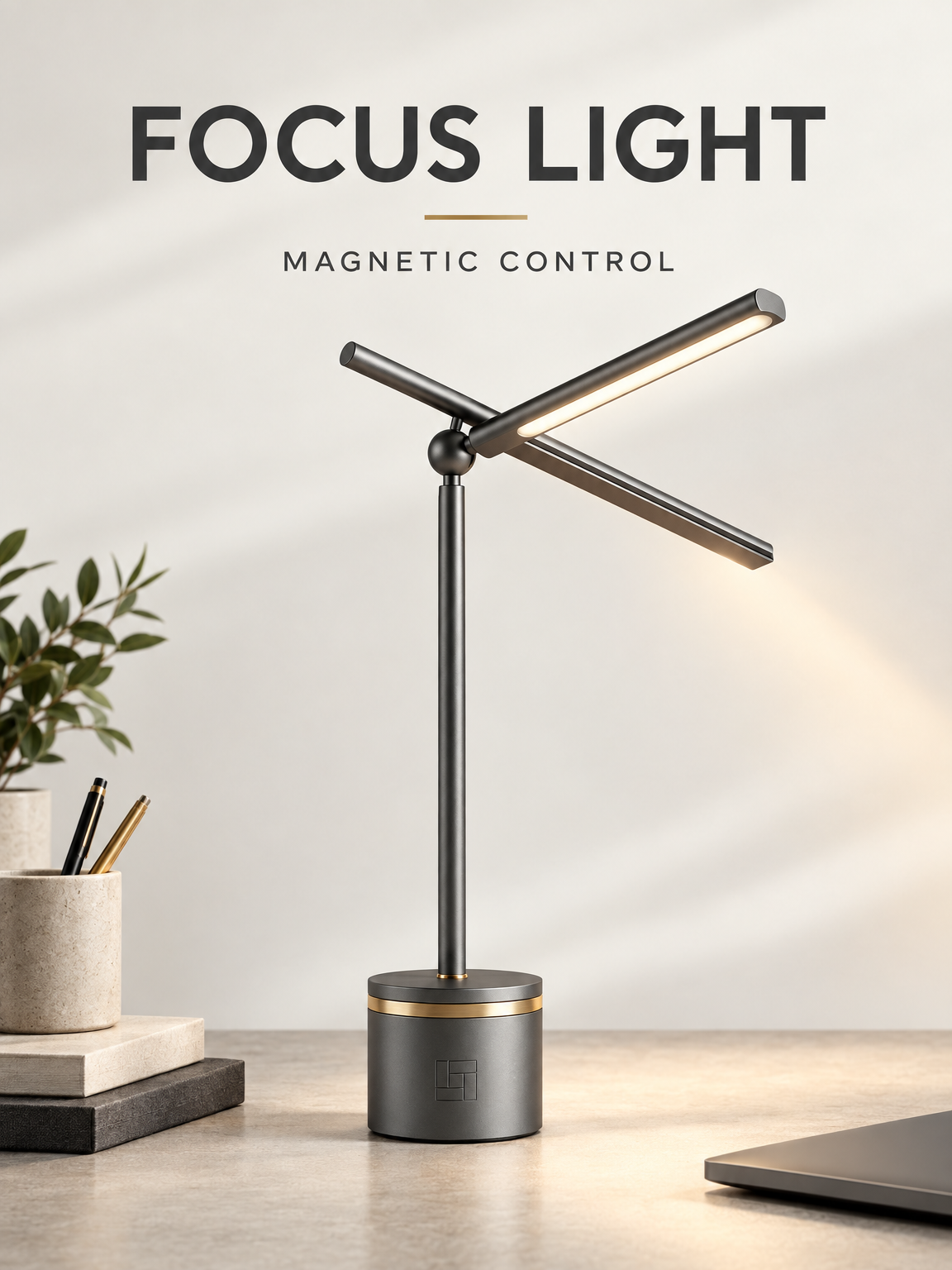
Both posters get the words right

Both posters get the words right · Nano Banana 2.1 / GPT Image 2.5 Flare · Fuser

Nano Banana 2.1 / GPT Image 2.5 Flare · Fuser

View full image

Both spelled the requested text correctly in Fuser’s test. The differences are punctuation and presentation: a poster on paper versus flat artwork.

Fuser · Read the review and prompt

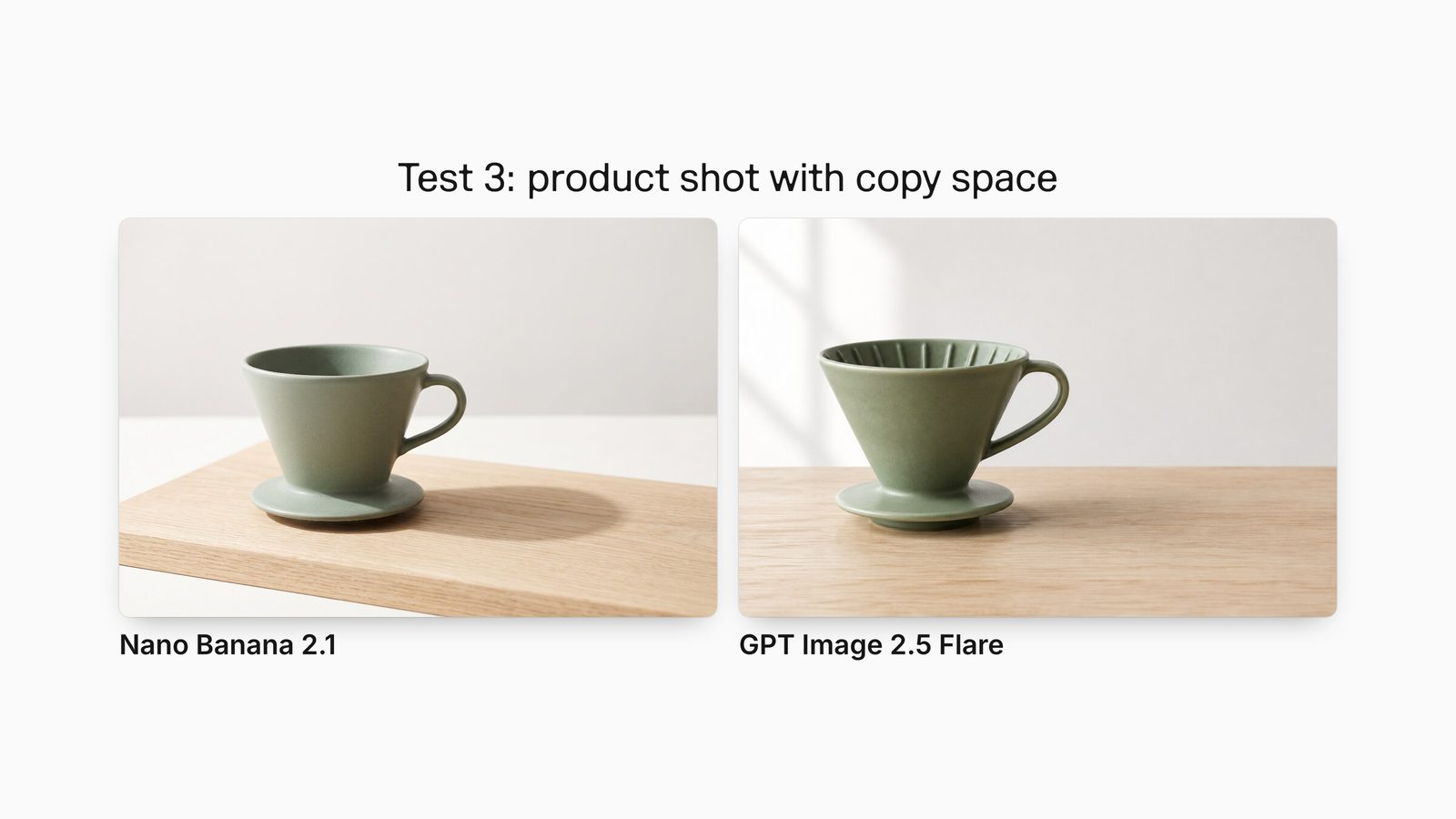
The setting matters too

The setting matters too · Nano Banana 2.1 / GPT Image 2.5 Flare · Fuser

Nano Banana 2.1 / GPT Image 2.5 Flare · Fuser

View full image

Fuser preferred Nano Banana here for following the separate oak board and shadow direction in the brief. Product detail is only part of the job.

Fuser · Read the review and prompt

Try it with your own comics

Want to see which model suits your comic? Start with these three prompts. We wrote them as test examples and have not run them yet. Give each model the same text and references, and use matching image sizes where possible.

Make a four-panel comic

Create a 2 by 2 comic page. The same original courier with short black hair and a yellow coat appears in every panel. Panel 1: she finds a blue envelope, caption "FOUND". Panel 2: she opens it, caption "OPEN". Panel 3: she sees a map, caption "MAP". Panel 4: she smiles, caption "GO". Read left to right, then top to bottom. No extra words.

Check the four captions, panel order, coat color and envelope across the page.

Three robots, one prop each

Create one wide comic panel with exactly three original robots standing in a row. The left robot holds one red umbrella. The middle robot holds one blue book. The right robot holds one yellow cup. No other robots, umbrellas, books or cups. Clean ink outlines and a plain white background.

Count robots and props, then check what the left, middle and right robots are holding.

Change only the coat color

Edit the supplied original character panel. Change only the coat from yellow to green. Preserve the face, hairstyle, pose, hands, speech bubble text, camera angle, background and all other colors. Do not add or remove objects.

Use the same character image. Check that the face, pose, background and other details stay unchanged.

Generate a few versions of each prompt and keep the mistakes too. Check text, characters and props before picking a favorite style. Note the time, quality setting and actual cost so you can judge which model fits regular use.

A few more questions

Should I choose Flare or Sunburst?

Start with Flare for quick composition and style experiments. Try Sunburst for careful edits and reference details. ComicsAI currently uses Sunburst.

Is it always better than Nano Banana or GPT Image 2?

It depends on the picture. These examples show differences in text, prop counts and staging. A few runs with your own subject are more useful than one impressive sample.

Did ComicsAI generate these comparison images?

No. They come from published HummingBytes and Fuser reviews, with links to the originals. Their settings differ from ComicsAI’s, so your results may differ too.

Sources and image credits

The model details come from OpenAI’s documentation. Comparison images come from HummingBytes and Fuser, which also offer paid creative tools. Each review has its own test conditions. Images remain on the publishers’ sites; the links lead to the full reviews. These are not ComicsAI test images.

More to explore