GPT Image 2.5 Sunburst: ComicsAI Free Model Update
Explore the GPT Image 2.5 Sunburst update in ComicsAI: 1920×1088 comic panels, reference-image editing, official examples, and practical prompts for your next story.

ComicsAI Editorial Team
Editorial Team
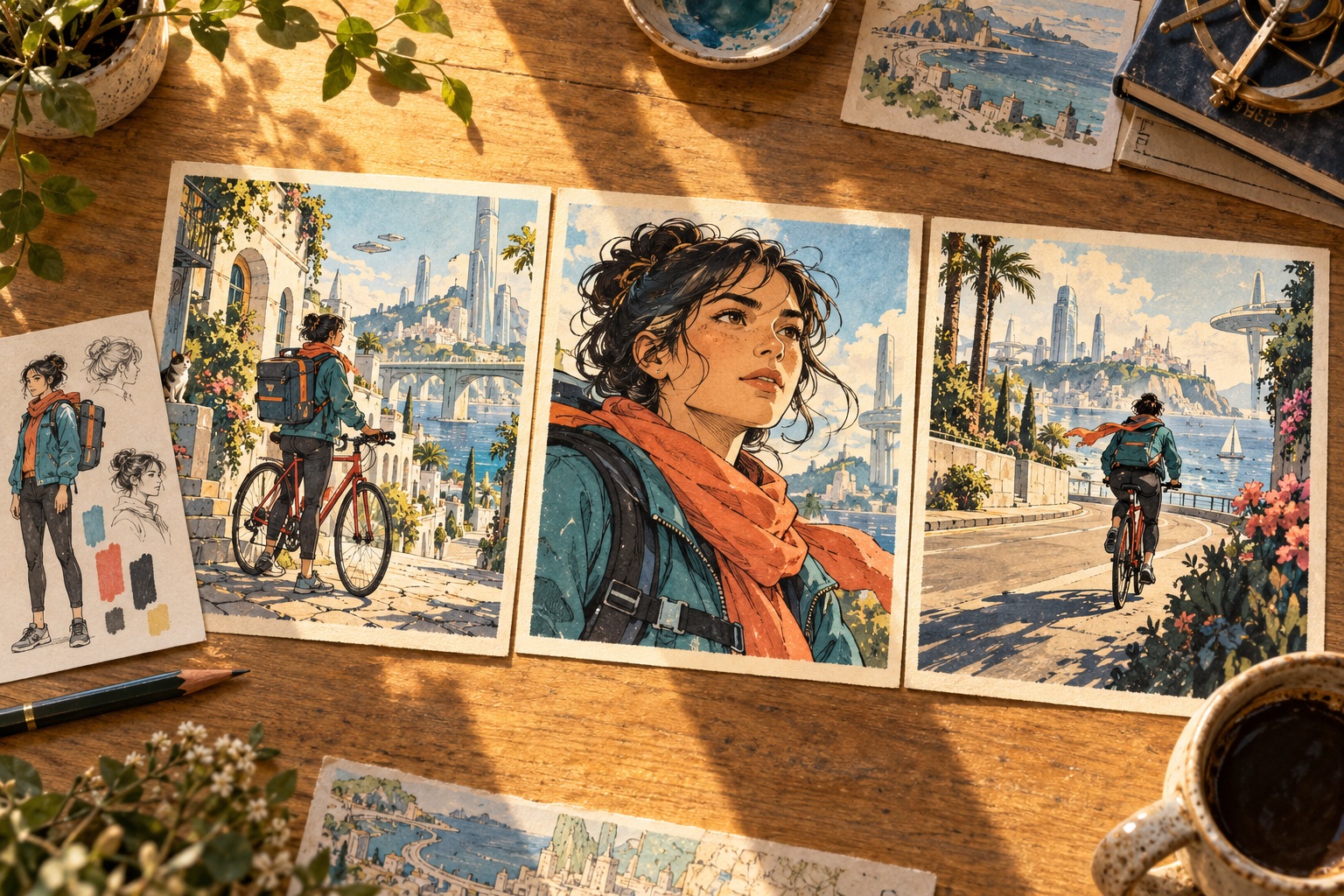
Cover: original AI-assisted ComicsAI editorial illustration. It is a concept image, not an official GPT Image 2.5 sample or a Sunburst performance test.
The GPT Image 2.5 Sunburst update brings a new default to ComicsAI's Free Model: landscape comic images at 1920 × 1088, with reference-image editing when a reference is supplied. This article explains the model choice, shows examples from OpenAI's official GPT Image 2.5 page, and gives you a practical starting workflow. The provider's broader API capabilities and the features exposed in ComicsAI are described separately so you can plan around the settings you actually have.
What the official sources say
OpenAI describes Sunburst as a model for image generation and editing where precision matters most. Flare targets fast everyday generation. The official guide covers text prompts, reference images, output dimensions, and quality settings including Low. These are documented capabilities, not ComicsAI benchmark results. OpenAI — GPT Image 2.5 Sunburst · OpenAI image generation guide
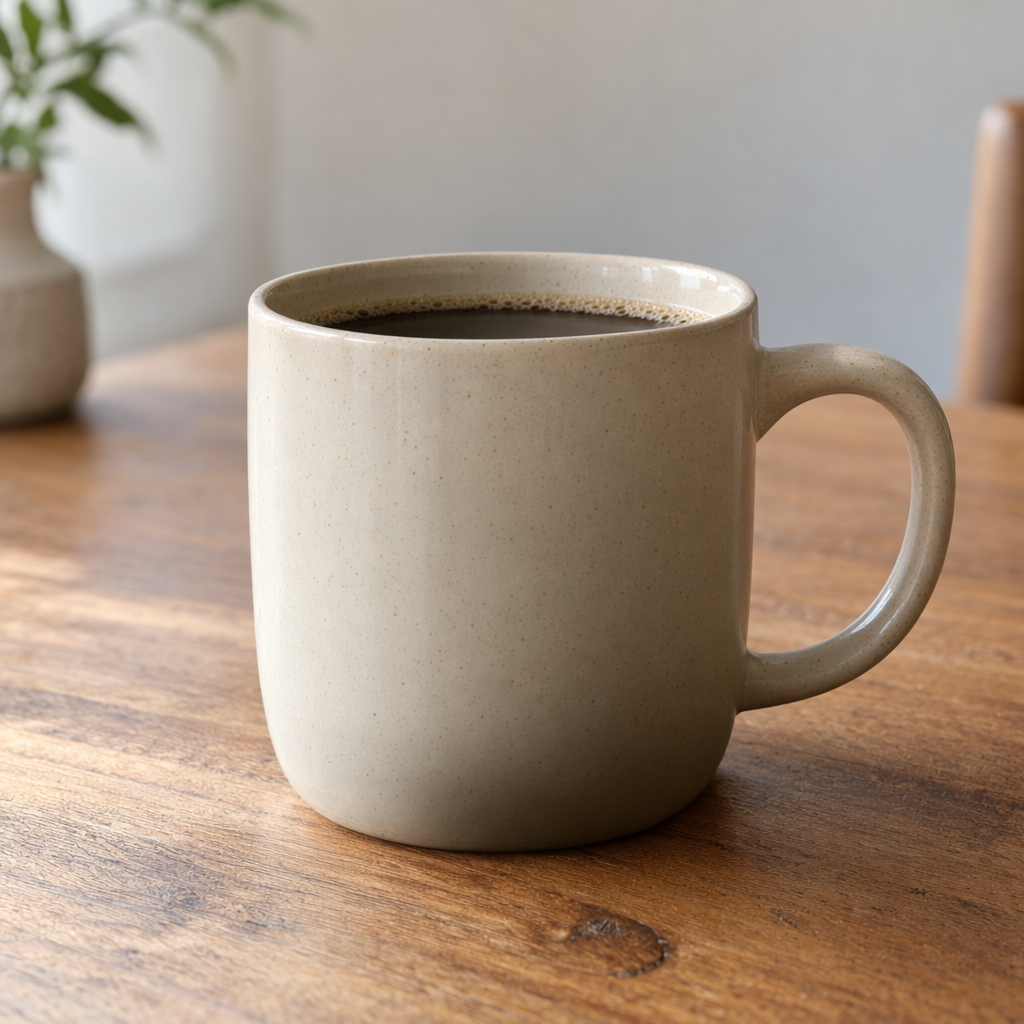
Example from OpenAI's image generation guide; not a ComicsAI Low-quality 1920×1088 test. OpenAI image generation guide
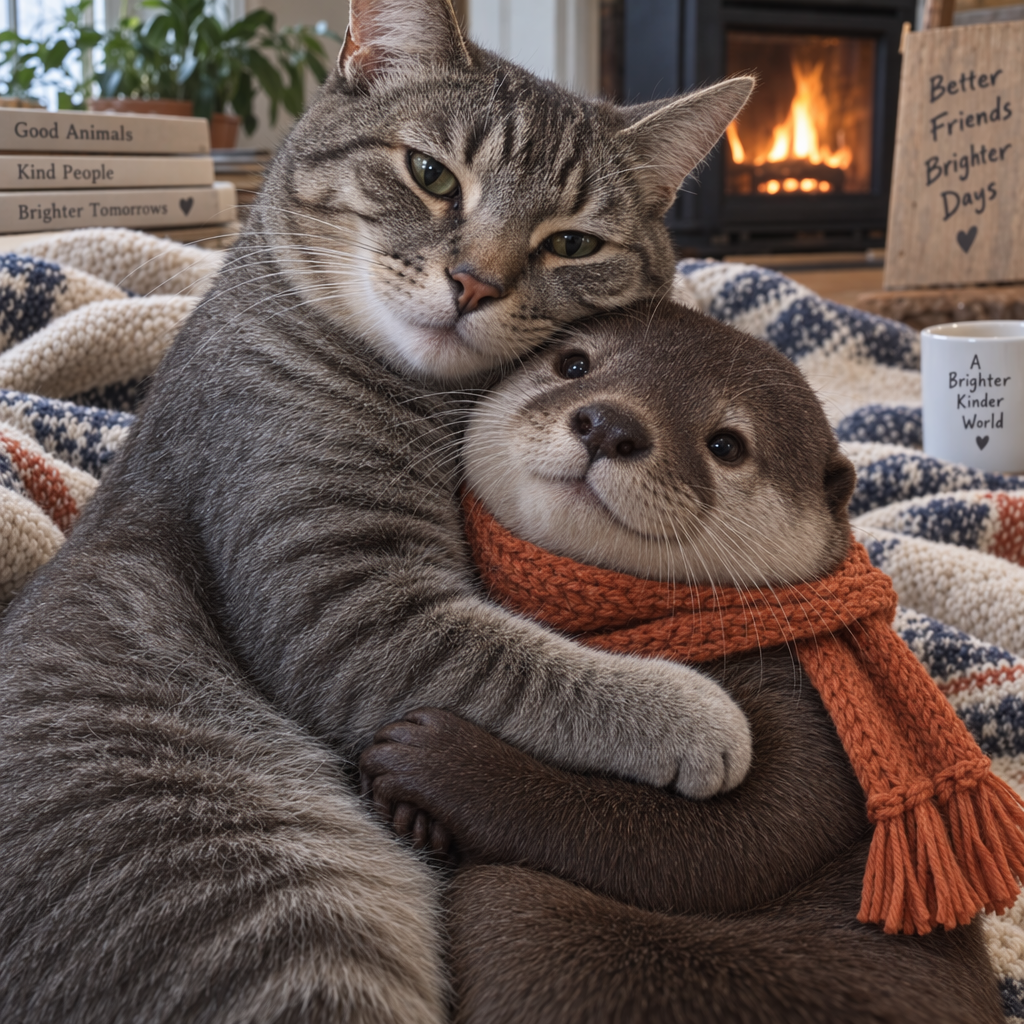
Example from OpenAI's image generation guide; not a ComicsAI Low-quality 1920×1088 test. OpenAI image generation guide
What changes in ComicsAI
The default Free Model now uses Sunburst through fal.ai. Each generation request asks for one 1920 × 1088 PNG (quality: low). If you supply a reference image, the request uses Sunburst's editing endpoint while keeping the same output size. The separate Backup Model has been removed from the selector. Free access still follows your account's usage limits; it does not mean the underlying provider API is free or that generation is unlimited. The wider resolutions and other controls in OpenAI's documentation do not automatically become available in this free workflow.
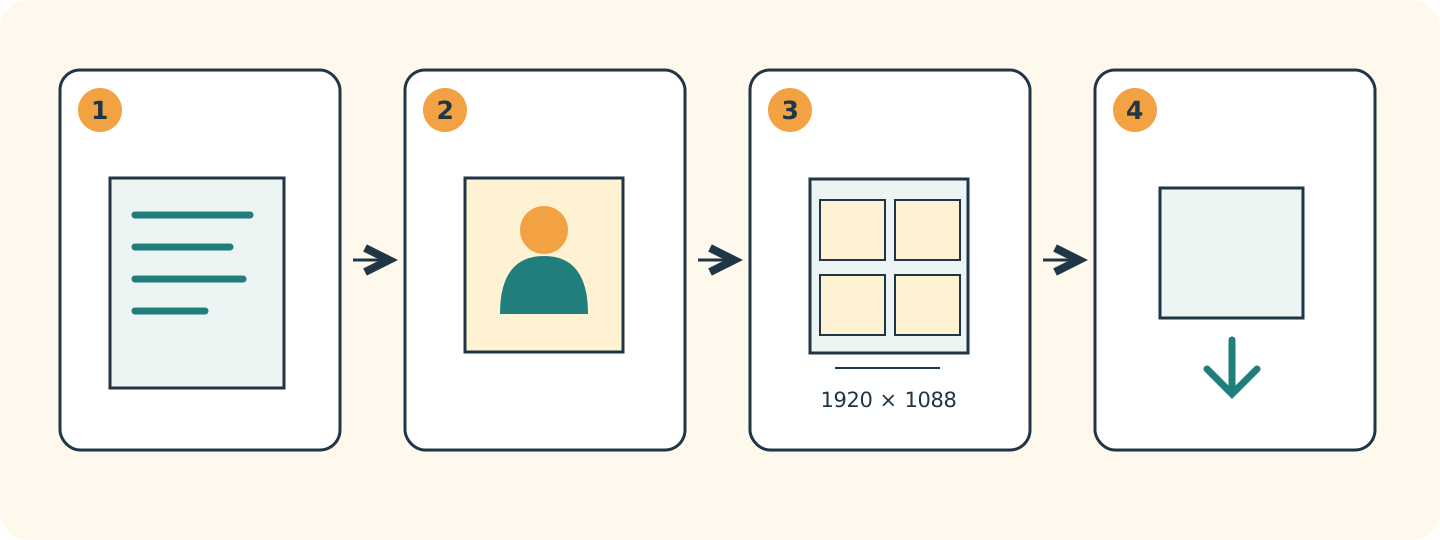
Original ComicsAI workflow diagram: 1. Describe one scene. 2. Add a reference if needed. 3. Generate a 1920 × 1088 image. 4. Review and save. Diagram only; it does not show measured model output.
Start with one scene and one clear action
Begin in AI Comic Maker with a single readable moment. Define the subject, action, location, camera framing, and style. A short scene is easier to inspect than a full chapter packed into one request. If the panel must contain a title or sign, state the exact wording and leave enough space for it. Keep dialogue short, then proofread the result before publishing. For recurring characters, prepare a clean reference using Character Sheet Generator.
A landscape comic panel. An adult bicycle courier in a teal jacket and orange scarf stops beside a red bicycle at a coastal tram station at sunset. Medium shot, readable silhouette, warm light, clean ink lines, no dialogue, leave space above the character for a caption.
This is a starting prompt written by the ComicsAI editorial team, not an official sample prompt or a verified output. After generation, check the face, hands, bicycle, and scene layout. Change one instruction at a time so you can tell which change helped. For a sequence, keep the character description and reference consistent while changing the action and camera framing. You can then plan the reading order in Storyboard before refining individual panels.
Use references to guide revisions
The OpenAI image generation guide accepts reference images with a text instruction. In ComicsAI, adding a reference sends the request to that editing route. Tell the model both what should change and what should stay: for example, keep the courier's face, jacket, and scarf, but move the scene from sunset to a rainy evening. References guide the model; they do not guarantee identical faces or perfect continuity. Review each panel, especially when you change pose, angle, lighting, or clothing.
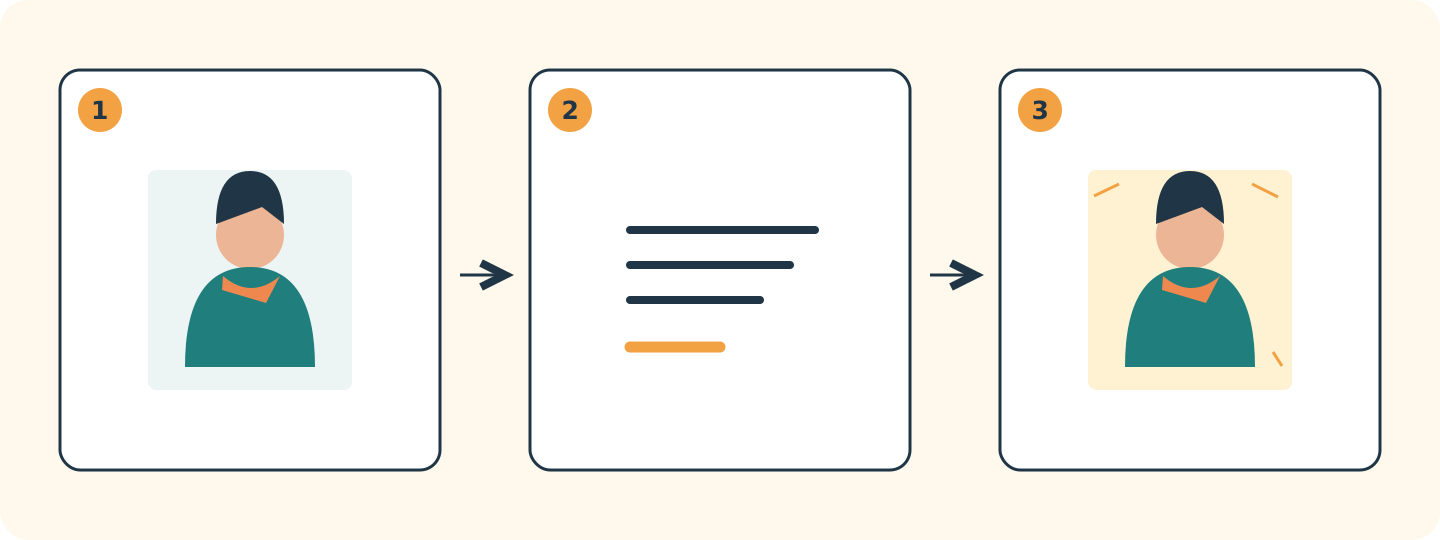
Original ComicsAI reference-editing diagram: 1. Choose a reference. 2. Describe one change. 3. Check the result. The repeated character is schematic artwork, not evidence of model consistency.
Questions before you generate
Is GPT Image 2.5 Sunburst always faster?
No. OpenAI recommends Sunburst for editing precision, while Flare targets fast everyday generation. Waiting time depends on the model, quality, size, and queue. Wait for the request to finish before submitting another.
Can the Free Model generate 4K images?
The current ComicsAI free route asks for 1920 × 1088 output. OpenAI's documentation describes broader sizing options for the underlying model, but those capabilities are not a promise of 4K output in this workflow. Use the resolution shown in the product when planning crops, lettering, and export.
Are all the pictures in this article official model results?
No. The two OpenAI documentation examples are official guide illustrations. The cover and two diagrams are original ComicsAI editorial visuals, not measured Sunburst results.
Sources and image credits
Official documentation checked on October 6, 2026. Product behavior is based on the current ComicsAI implementation. Model results still need editorial review; inspect text, anatomy, composition, and any details that matter to your story before sharing.
ComicsAI Editorial Team
Editorial Team
"ComicsAI editors explain product changes and practical comic creation workflows using documented sources."