AI Cartoon Video Generator: ComicsAI Video Is Live
Meet ComicsAI Video, an AI cartoon video generator for turning text or images into 6–30 second clips. See examples, prompt tips, plans, and try it today.

ComicsAI Editorial Team
Editorial Team
ComicsAI Video is now live. The new AI cartoon video generator turns a written scene or a reference image into a 6–30 second animated clip. It is made for comic creators who want movement without rebuilding their characters, settings, and visual language in a separate video workflow.
You can write a prompt, upload a panel, choose a format, and generate from the same ComicsAI account you use for still images. The first release supports five aspect ratios, 480p and 720p output, and four duration choices. It also includes real prompt examples, generation history, and a result area where finished clips can be previewed or downloaded.
This article explains what shipped, how to get better results, where video fits inside a comic workflow, and what Premium and Max members receive each month.
Key takeaways
- Generate an AI cartoon video from text alone or from a reference image.
- Choose 6, 10, 15, or 30 seconds, with five landscape, portrait, and square formats.
- Use short, visible actions instead of writing a complete plot into one prompt.
- Premium includes 1,000 video seconds per month; Max includes 5,000 video seconds per month.
- The feature is available to active Premium and Max subscribers.
In this launch guide
- What is ComicsAI Video?
- What the AI cartoon video generator includes
- How to make an AI cartoon video
- Three AI cartoon video examples
- A practical prompt formula
- Text-to-video or image-to-video?
- How video fits into a comic workflow
- Premium and Max video allowances
- Frequently asked questions
What is ComicsAI Video?
ComicsAI Video is an AI comic video generator built into the ComicsAI creation workflow. It turns a scene description or image reference into a short clip. The goal is not to replace full timeline editing. It is to help creators produce a strong animated shot that can open a trailer, move a comic panel, introduce a character, or connect two story beats.
That distinction matters. A comic panel already contains choices about character design, camera angle, color, mood, and setting. Starting again in a general-purpose video tool can make the result feel disconnected. Image-to-video gives you a way to carry more of those visual decisions into the moving clip.
If you are starting from a new idea, text-to-video is the faster route. If you already have a panel, cover, or character image, image-to-video gives the model a clearer visual anchor. Both modes are available on the new ComicsAI Video generator.
For anyone looking for an AI comic video maker, the key difference is continuity: video becomes the next step after panel creation instead of a separate process with a new visual starting point.
What the AI cartoon video generator includes
The first release focuses on the controls that affect short-form comic and cartoon clips most directly.
| Control | Available options | Why it matters |
|---|---|---|
| Input | Text prompt or reference image | Start from a new scene or animate existing artwork. |
| Duration | 6, 10, 15, or 30 seconds | Match a reaction shot, action beat, intro, or longer atmosphere clip. |
| Aspect ratio | 16:9, 9:16, 1:1, 3:2, or 2:3 | Prepare for landscape video, vertical social posts, square feeds, or comic-shaped frames. |
| Quality | 480p or 720p | Use 480p for faster drafts and 720p when the shot is ready for review or publishing. |
| Results | Preview, download, and history | Review the current shot and return to recent generations later. |
The generator accepts common reference-image formats, including PNG, JPEG, and WebP. A public image URL can also be used when the source is already hosted. This makes it possible to move from a finished panel into motion without first recreating the scene as a long text description.
ComicsAI Video is deliberately centered on one shot at a time. A single clear subject, one readable action, and one camera idea usually give the model a better target than a prompt that asks for several locations, costume changes, and plot turns in ten seconds.
How to make an AI cartoon video
The basic workflow takes six steps:
- Open ComicsAI Video. Go to the AI cartoon video generator and sign in with an active Premium or Max account.
- Choose text or image input. Start with a written shot if you need visual exploration. Upload a panel when composition or character appearance needs to stay closer to a source.
- Write one shot. Describe the subject, visible action, environment, camera behavior, and mood. Keep the requested movement physically readable.
- Select the output. Pick a duration, aspect ratio, and quality based on where the clip will be used.
- Generate and review. The task runs asynchronously. Keep the page open or return to the generation history when it finishes.
- Revise one variable. If the result is close, change the action, camera, or atmosphere—not every part of the prompt at once.
For example, “anime hero in a city” identifies a subject and setting but says very little about the shot. A more useful prompt is: “An anime courier races through a crowded neon night market, shoulder-level tracking camera, hanging signs sweep past the lens, rain reflections on the street, energetic comic action.” The second version gives the model visible events and camera logic.
If you need artwork before animation, create the starting panel with the AI Comic Generator. A clean source image can act as the visual brief for the video step.
Three AI cartoon video examples from ComicsAI
These clips come from the current ComicsAI Video example library. They demonstrate three useful prompt patterns: a moving action scene, character-focused atmosphere, and playful subject motion.
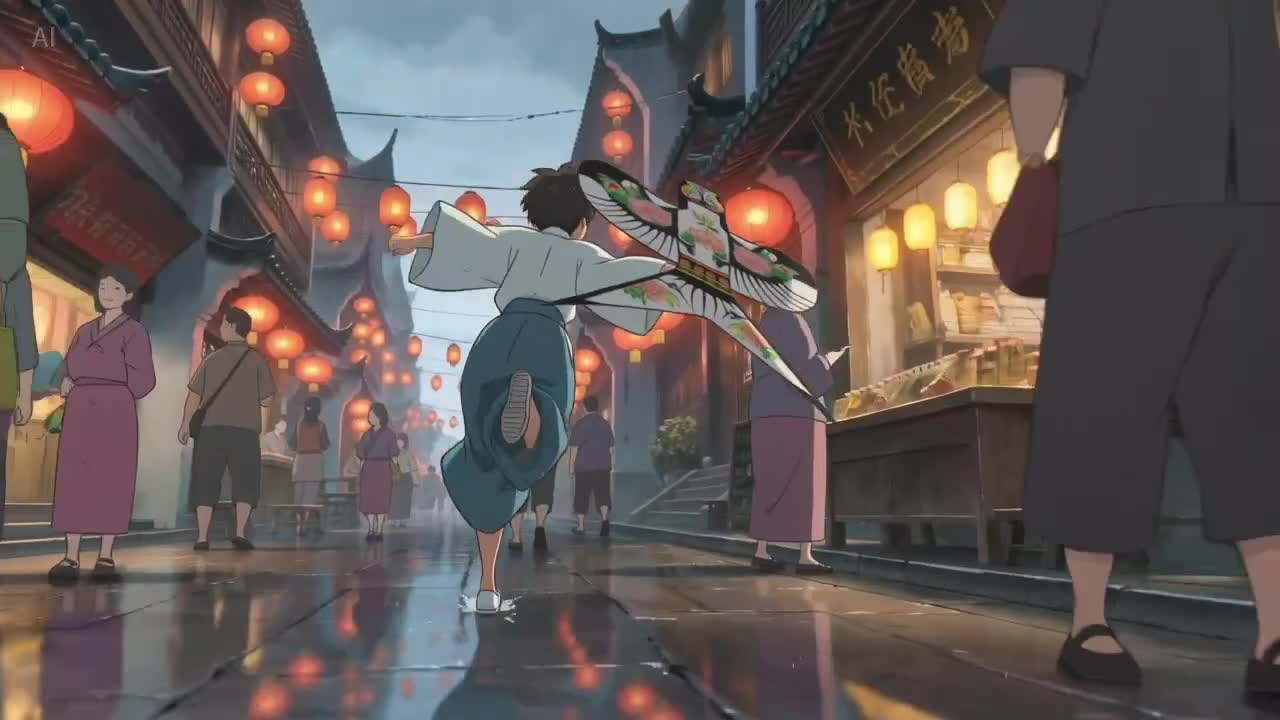
1. Night-market action with camera movement
The scene works because several details support the same action. The character moves forward, the camera tracks beside them, and lights and signs pass through the frame. Nothing in the prompt asks the model to stop, introduce a second storyline, or cut to another location.
Use this pattern for chase shots, entrances, travel beats, and short episode teasers. For a vertical post, switch to 9:16 before generating rather than cropping a landscape composition afterward.
2. Gothic character moment with controlled motion
Not every comic video needs a large action. Small movements can preserve the feeling of an illustration while adding time and mood. A slow camera push, drifting hair, moving fog, blinking lights, or a slight change in expression can be enough for a character reveal.
This approach is especially useful when the source panel is already strong. If you need to convert an existing photo or drawing into comic art first, the Image to Comic tool can prepare a more suitable reference image before animation.
3. Playful motion built around one subject
The panda clip is built around a premise that can be understood immediately. That makes it suitable for short social posts, reaction loops, mascot content, and light comic transitions. When the idea is simple, the motion has more room to read clearly.
A practical AI cartoon video prompt formula
Use this five-part structure:
Subject + visible action + environment + camera + mood
Here is the formula in practice:
“A masked comic-book hero lands on a wet rooftop, above a dense futuristic city, low-angle camera tilts upward, blue lightning and wind pull the cape, tense cinematic mood.”
Each part answers a production question:
- Subject: Who or what must remain recognizable?
- Visible action: What can the viewer see happening during the clip?
- Environment: Which background details establish the world?
- Camera: Is the view static, tracking, pushing in, pulling back, panning, or tilting?
- Mood: What lighting, weather, color, or pacing should shape the shot?
Avoid instructions such as “tell the full story of a hero who grows up, loses a battle, trains, and returns.” That is a sequence, not a shot. Break it into separate clips: childhood discovery, first defeat, training close-up, and return. Generate each beat, then arrange the clips in an editor.
For recurring characters, reuse the same short identity description and reference image. Change the pose or action while keeping stable details—hair, costume, age, facial features, and signature accessories—unchanged.
Text-to-video or image-to-video: which should you choose?
| Choose text-to-video when… | Choose image-to-video when… |
|---|---|
| You are exploring a new scene. | You already have a finished panel or cover. |
| Exact character appearance is not fixed yet. | Character design or costume needs a stronger visual anchor. |
| You want several visual directions quickly. | Composition and color should stay closer to the source. |
| The prompt itself contains enough visual detail. | Describing every detail again would be inefficient. |
Text-to-video is useful at the idea stage. It lets you test whether a premise has enough visual motion before spending time on a polished panel. Image-to-video is better later in the process, when the creative choices in the artwork need to carry into the clip.
The reference image does not remove the need for a prompt. Tell the model what should move and what should remain stable. “Animate this image” is less useful than “Keep the character’s face and costume stable; add a slow camera push, moving rain, a blinking sign, and a small turn toward the camera.”
How video fits into a comic creation workflow
An AI comic video works best as part of a larger story system. The clip may be the final asset for a social post, but it can also serve as a trailer shot, a scene transition, a pitch visual, or a motion reference for later panels.
A practical workflow looks like this:
- Plan the beat. Define the character goal and the one moment the viewer should remember.
- Create the still image. Generate or select the strongest panel for the shot.
- Animate the panel. Use image-to-video to add action, camera movement, and atmosphere.
- Review continuity. Check faces, costumes, important props, and the direction of movement.
- Edit the sequence. Combine several short clips, add sound, dialogue, captions, and final timing in your preferred editor.
Writers can also start earlier with Story to Comic, turning a written scene into visual beats before choosing which one deserves motion. This prevents the video prompt from carrying the full burden of story planning.
The best clip is not always the busiest clip. A two-second look, cape movement, passing shadow, or camera push can create anticipation before a larger action. Think in panels with time added, then use editing to build the sequence.
Premium and Max video allowances
ComicsAI Video is available to users with an active Premium or Max subscription. Monthly video usage is measured in generated seconds.
| Plan | Monthly video allowance | Approximate 10-second clips |
|---|---|---|
| Premium | 1,000 seconds | About 100 videos |
| Max | 5,000 seconds | About 500 videos |
The estimate assumes every video is ten seconds long. Choosing 6, 15, or 30 seconds changes the approximate number of clips you can create. Your remaining allowance appears inside the generator so you can choose a duration before starting a task.
Premium fits creators testing short trailers, character loops, and selected episode moments. Max is designed for creators producing more variations, multiple social formats, or ongoing video batches. See the current ComicsAI pricing and plan details before choosing a subscription.
Frequently asked questions
Can I make an AI cartoon video from a comic panel?
Yes. Upload a PNG, JPEG, or WebP panel as the reference image, then describe only the movement you want to add. State which character details should remain stable, identify the visible action, and add one camera instruction. A clear source panel usually gives image-to-video a stronger visual starting point than text alone.
How long can a ComicsAI Video clip be?
You can generate clips of 6, 10, 15, or 30 seconds. Shorter durations work well for reactions, loops, and draft tests. Longer durations give an action or atmosphere more time, but the prompt should still focus on one coherent shot rather than several scenes or a complete story arc.
Which aspect ratio should I use for an AI comic video?
Use 16:9 for landscape players and trailers, 9:16 for vertical short-form platforms, and 1:1 for square feeds. The 3:2 and 2:3 options provide wider or taller alternatives for editorial and comic-shaped compositions. Select the final format before generation to avoid aggressive cropping later.
Does the AI cartoon video generator support free accounts?
The current release requires an active Premium or Max subscription. Premium includes 1,000 generated video seconds per month, while Max includes 5,000. Free and other plan types can view the product page and examples, but video generation is locked until an eligible subscription is active.
Do I need video-editing experience?
No editing experience is required to generate and download one clip. For a trailer or longer sequence, a basic editor is still useful for arranging shots, trimming timing, adding sound, and placing captions. ComicsAI Video creates the individual animated shot; your edit determines how several shots become a finished sequence.
ComicsAI Video is ready for your next panel
The new AI cartoon video generator adds motion to the ComicsAI workflow without asking comic creators to abandon the visual work they already made. Start from a prompt when you need a new direction. Start from a panel when character and composition decisions already exist. In both cases, keep the shot focused and revise one variable at a time.
Open ComicsAI Video, choose a six- or ten-second first test, and animate one moment from your current story. A strong reaction, entrance, chase beat, or atmospheric pause is enough to begin.
ComicsAI Editorial Team
Editorial Team
"ComicsAI editors publish practical guides about AI comic creation workflows, tools, and creator education."