ComicsAI Workflow Update: Storyboard to Studio
See how the new ComicsAI workflow saves storyboards, restores Studio panels, improves character consistency, and makes failed generations easier to retry.
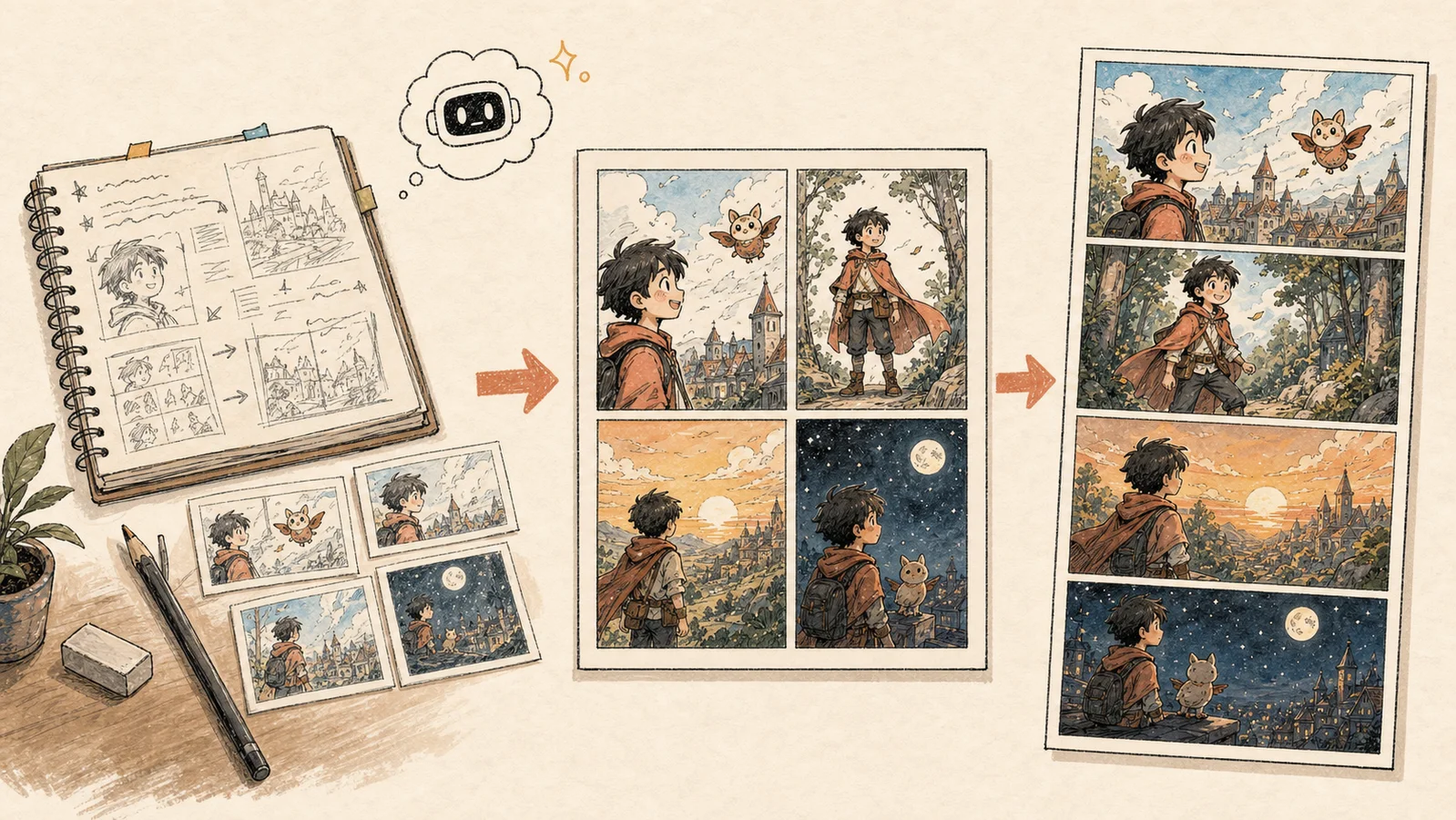

ComicsAI Editorial Team
Editorial Team
Generating one good-looking image is exciting. Turning that image into a comic is where the real work begins.
By panel 2, the hero may have a different face. By panel 3, the outfit has changed. A failed panel may force you to repeat work, and moving from a storyboard into an image editor may mean copying every prompt by hand.
Our latest ComicsAI workflow update focuses on those everyday problems. Storyboards can now become saved projects, move into Studio with their structure intact, carry the right characters into each panel, generate a complete sequence, and retry one weak result without throwing away the rest.
This guide explains the upgrade in plain language, then adds the technical detail for creators who want to understand what is happening behind the interface.
The short version: Plan once, keep your project context, generate the whole sequence, and fix only the panels that need attention.
In this update
- Saved storyboard projects
- Storyboard-to-Studio handoff
- Panel-level character consistency
- Generate All strategies
- Panel retry and regeneration
- Smarter model selection
- Generation reliability
- A practical step-by-step workflow
- Frequently asked questions
What changed at a glance
| Before | Now | Why it helps |
|---|---|---|
| A storyboard could feel like temporary text. | Every saved storyboard becomes its own project. | You can continue the same project instead of rebuilding it. |
| Moving into Studio could lose important context. | Pages, prompts, dialogue, characters, outfits, style, and model settings travel together. | Studio opens closer to the storyboard you approved. |
| The same cast could be attached to every panel. | You choose the characters and clothing for each story beat. | The image model receives more relevant references. |
| A long sequence required repeated manual clicks. | Generate All processes every unfinished beat. | You can move from an approved plan to a draft sequence faster. |
| One failed result interrupted the whole flow. | Retry or regenerate only that panel. | Completed work stays in place. |
| A provider failure was difficult to diagnose. | Supported routes can fall back, and attempts are recorded safely. | More requests can recover, and real failures are easier for us to fix. |
The new path is easier to understand:
Story idea → editable storyboard → saved project → Studio generation → panel-level revision → finished page
1. Your storyboard is now a real project
Think of the old storyboard as a sheet of notes. Useful, but easy to separate from the rest of the work. The new storyboard behaves more like a project file.
When a signed-in creator saves a storyboard, ComicsAI gives it a unique project ID. Selecting Start Generating opens that exact project in Studio. You do not need to copy the story into another screen or remember which settings you used.
The project can keep:
- The original story and project title
- Page order and panel positions
- The visual prompt for every panel
- Captions and dialogue
- Format, visual style, and image model
- The recurring cast
- The cast and outfit selected for each panel
- Whether the project is still a draft, currently generating, or complete
In plain English: ComicsAI now remembers the comic plan as a connected set of pages and panels, not as one large prompt.
Studio also saves meaningful changes back to the same project. If you refine a prompt, change the cast, switch models, or finish more panels, the storyboard can reflect that progress.
2. Studio opens with the work already organized
Saving a project only matters if the next screen knows how to use it. The Storyboard-to-Studio handoff now rebuilds the page before you start generating.
Imagine a four-panel scene:
- Mei arrives at school in the rain.
- She notices a strange light in an empty classroom.
- Her teacher enters and asks what happened.
- Mei leaves wearing a red raincoat as the light follows her.
When that storyboard opens in Studio, each beat returns to its intended panel slot. Its prompt, caption, dialogue, characters, and outfit notes return with it. The project format, art style, and available saved model are restored too.
That removes a common source of mistakes. Dialogue is no longer separated from composition. Panel 4 does not accidentally become panel 2. The teacher does not appear in scenes where only Mei was selected.
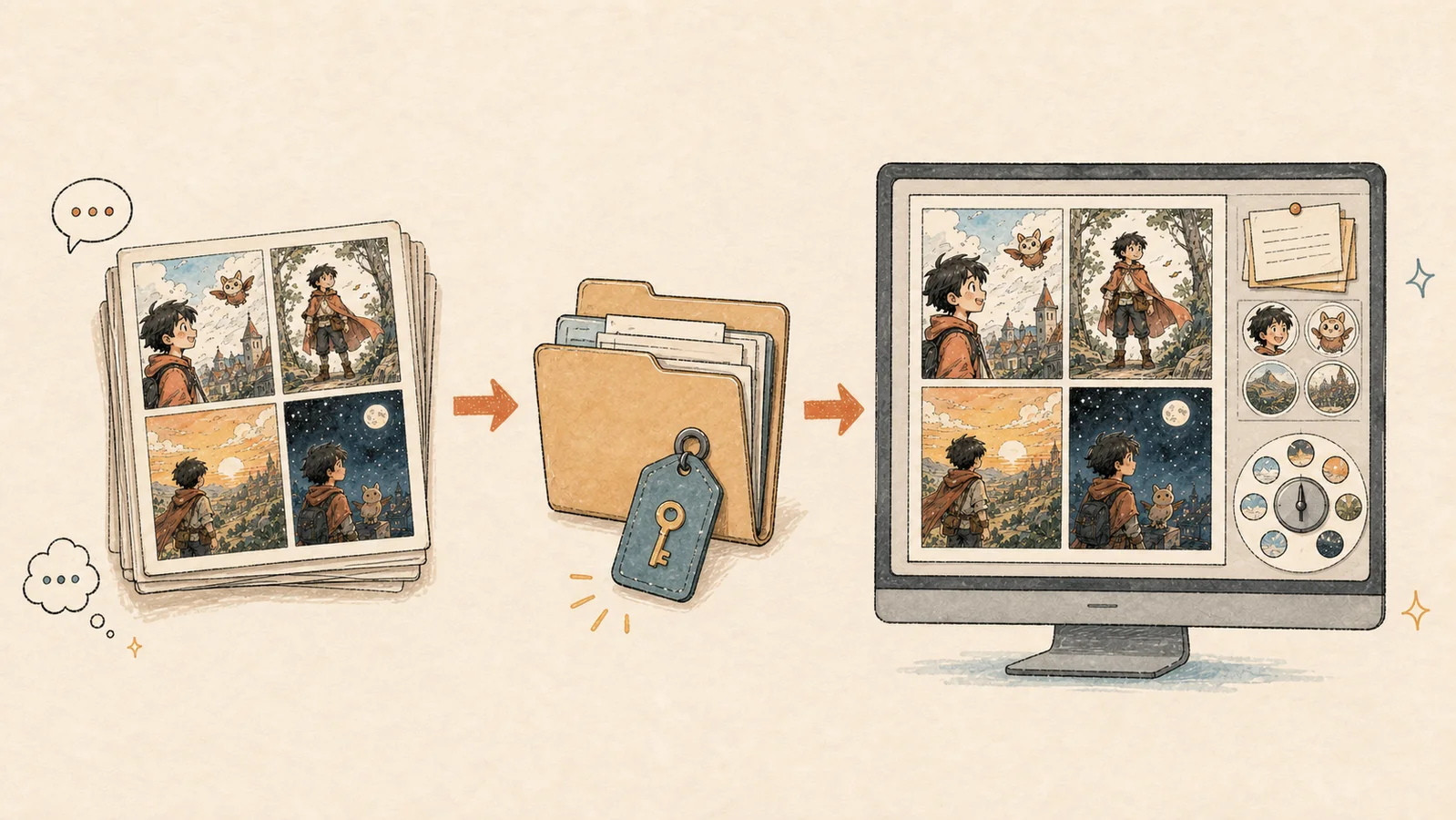
The same four-panel structure moves from Storyboard into Studio, together with its prompts, cast references, and creative settings.
What happens if the project cannot be found?
Studio checks that the project exists and belongs to the current account. If it cannot load the requested storyboard, it tells the creator instead of quietly opening an unrelated blank project. Compatible local drafts can still provide a recovery path where appropriate.
3. Character consistency is controlled panel by panel
Character consistency does not come from repeating a name such as “Mei.” The image model needs recognizable details: face shape, hair, age, body type, colors, accessories, and clothing.
But a comic also needs change. A hero can wear a school uniform in the morning, a raincoat outside, and a dark jacket at night. The goal is to preserve identity while allowing intentional costume and scene changes.
The new controls separate this into three simple choices:
- Project cast: Which recurring characters belong to this story?
- Panel cast: Who appears in this specific panel?
- Panel outfit: What is each selected character wearing here?
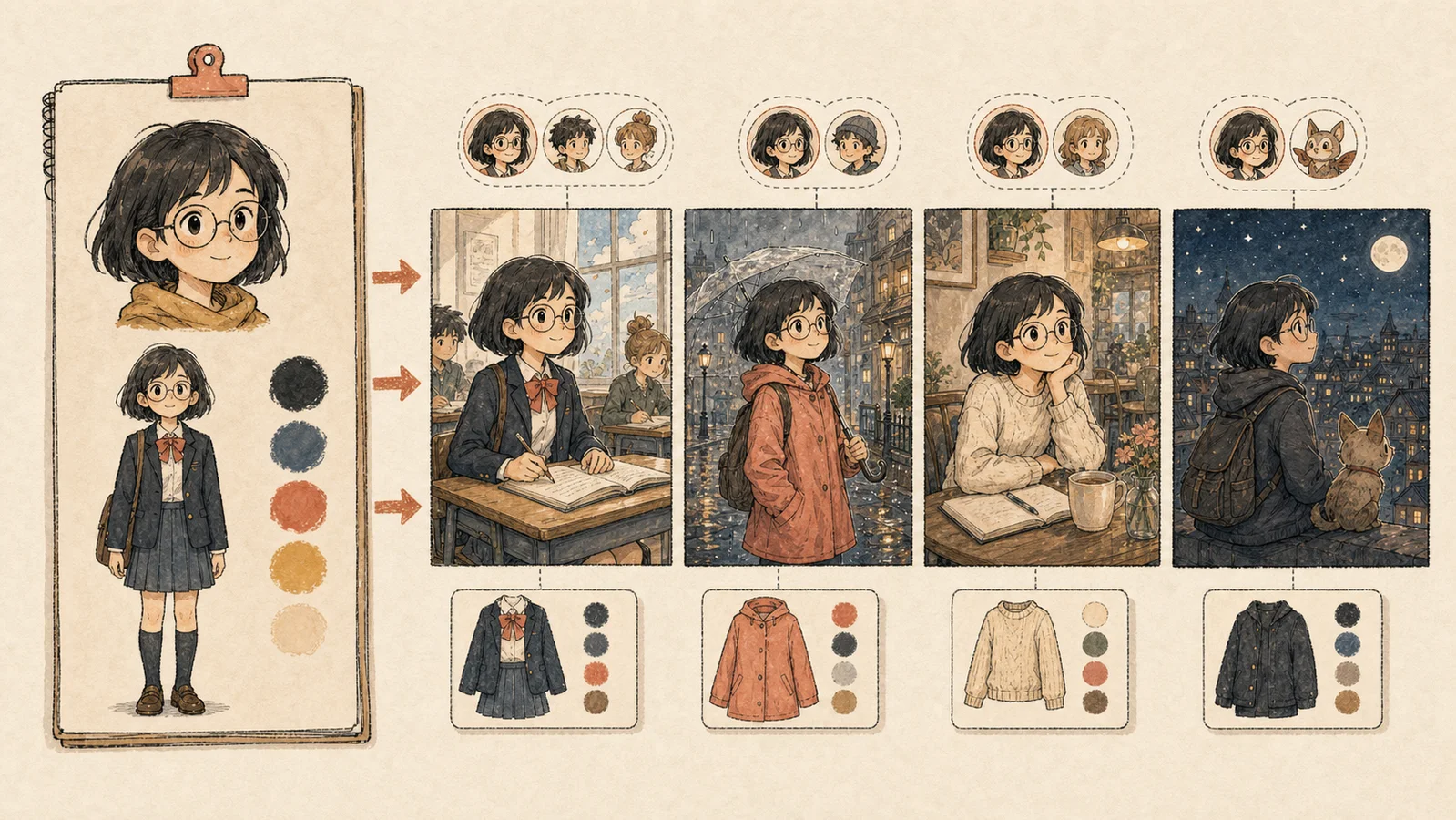
The face, glasses, hairstyle, and proportions stay recognizable. The outfit changes because the creator chose a different state for each scene.
A practical example
Suppose Mei appears in panels 1, 2, and 4, while the teacher appears only in panel 3. You can select Mei for the three relevant panels and the teacher only for the classroom conversation. You can then describe Mei's red raincoat in panel 4 without forcing that raincoat into the earlier school scene.
Studio can combine those choices with stored character descriptions and avatar references. The storyboard also keeps a snapshot of the character information it used, including its version time. If the main character profile changes later, the project still has a clearer record of the earlier creative decision.
Both OpenAI image generation and Google Gemini image generation support workflows that use images as inputs. ComicsAI's job is to send the most relevant character and continuity references for the panel being created.
Helpful expectation: Better references improve consistency, but no image model can promise a perfectly identical face in every camera angle and pose. A clear character sheet and controlled scene changes still produce the best results.
For recurring characters, begin with the Character Sheet Generator or upload a clear reference. Front, side, expression, outfit, and prop views give later panels a stronger visual anchor.
4. Generate All creates the unfinished storyboard sequence
Generating one beat at a time is useful while testing an idea. Once you approve the storyboard, repeating the same click for every panel becomes slow and distracting.
Generate All finds every beat that has not completed and works through that list. Each beat shows a simple state: idle, generating, completed, or failed. If you run Generate All again, completed panels are skipped.
There are two strategies:
| Strategy | How it works | Best for |
|---|---|---|
| Best consistency | Generates one beat at a time and can use recent work as continuity context. | Sequential scenes, recurring characters, gradual action, and important outfit continuity. |
| Faster | Generates up to two beats in one limited batch. | Rough drafts, independent shots, scenery, or faster visual exploration. |
If you are creating a conversation or action sequence, start with Best consistency. If you are testing four different establishing shots, Faster may be the better first pass.
5. Fix one panel without restarting the page
An image request may fail because a provider is busy, a request times out, or a reference is unavailable. A request may also complete successfully but produce the wrong camera angle or expression.
These are panel problems, not project problems. The updated workflow lets you:
- Retry a failed storyboard beat
- Generate a new variation of a completed beat
- Regenerate a panel in its existing canvas slot
- Keep the other completed panels unchanged
- Reuse the panel's cast, outfit, story position, and nearby continuity context
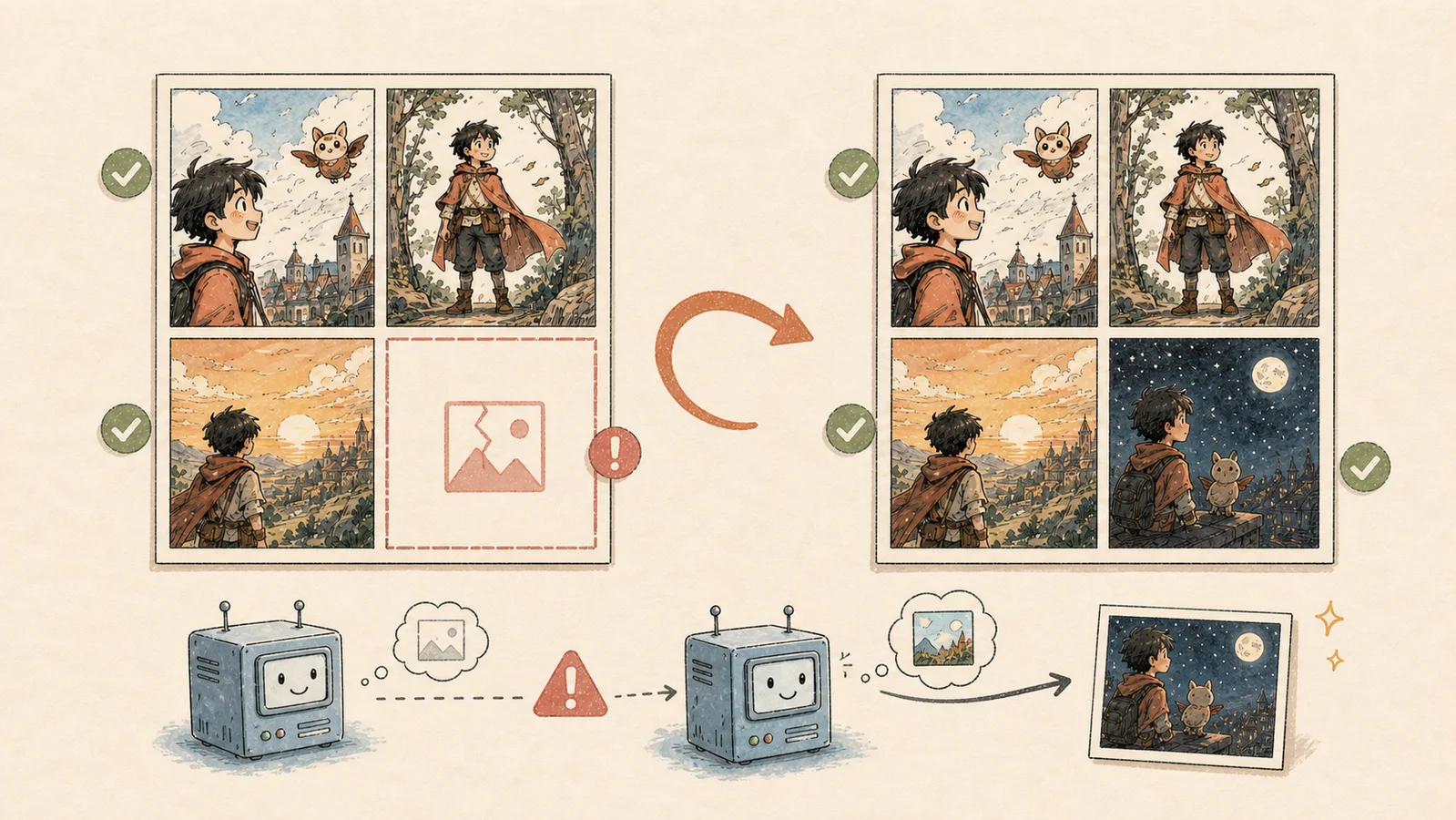
Only the failed panel is replaced. The other three panels remain in place, while a backup provider can handle supported requests when the first route fails.
When Studio regenerates a panel, it removes the old version from the active generation context and asks for a stronger version of the same beat. The replacement stays in the same page slot. Separately edited speech-bubble layout can remain attached to that slot as well.
This sounds like a small detail, but it protects page composition. Fixing panel 3 should not move panel 4 or force the creator to rebuild the entire page.
6. The starting model now better matches the account
Different stages of comic creation need different tradeoffs. A rough layout needs speed and availability. A cover, close-up, or dialogue-heavy composition may benefit from a stronger paid model.
The new defaults are straightforward:
- Free account: starts with the Free model.
- Pro account: starts with Standard Pro.
- Premium work: can use the available Premium Studio route.
The default is a recommendation, not a lock. Creators can choose another model available to their account. The selected model is saved with the storyboard and restored in Studio when it is still available.
Simple rule: Use a lower-cost route to explore the idea, then move to a stronger model for the panels you plan to keep.
7. Generation failures are easier to recover from and diagnose
This part is mostly behind the scenes, but it affects how dependable the product feels.
For supported routes, ComicsAI can try a configured backup provider after the primary provider fails. A creator may simply receive the finished panel after a short delay. The system still records that a fallback happened, so our team can identify an unreliable route instead of hiding the problem.
What creators notice
- More supported requests have a second path to completion.
- Failed panels show a clear state and can be retried.
- Completed panels remain safe when another beat fails.
- Error messages are connected to the correct generation task.
What ComicsAI records safely
For each attempt, the system can record the provider, resolved model, start time, duration, retry count, final state, and sanitized error details. API keys and sensitive tokens are removed before an error log is stored.
The administration workspace then summarizes success rate, failure rate, retry rate, fallback rate, and generation speed at P50 and P95. These measurements help us answer practical questions: Is one model slow for everyone? Is one provider failing more often? Are reference-heavy requests timing out?
That turns a vague report such as “generation feels broken” into a problem the team can locate and fix.
How to use the upgraded workflow
For your first test, keep the story short. Four to six panels are enough to see whether the handoff and character continuity are working.
- Open ComicsAI Studio and describe the story, format, style, mood, and page layout.
- Select the recurring characters that belong to the project.
- Choose Plan to split the story into editable beats.
- Read the prompts, captions, and dialogue as a sequence. Fix the story before generating images.
- Open Cast & outfits on each beat. Select only the people who appear and note any clothing change.
- Choose Best consistency for a connected scene or Faster for a rough visual draft.
- Select Generate All.
- Retry failed beats and regenerate only the panels whose composition needs work.
- Review the whole page for reading order, character identity, dialogue space, and visual rhythm before exporting.
For a lighter first experiment, Try Free lets you explore formats, layouts, characters, and individual panel generation before entering the complete Studio workflow.
What this means for creators
The biggest improvement is not one new button. It is continuity between the buttons.
Your storyboard can survive the move into Studio. Each beat knows where it belongs. The right cast and clothing can follow that beat. Generate All can process the unfinished sequence. A failed panel can be replaced without damaging its neighbors. The selected model stays with the project, and supported requests have a backup route when the first provider fails.
Character consistency and generation speed still depend on the selected model, reference quality, scene complexity, provider load, and the size of the creative change. This update does not remove those limits. It gives creators clearer controls and gives our team better information when something goes wrong.
Frequently asked questions
Does ComicsAI save my storyboard automatically?
Signed-in storyboard projects receive a unique ID and are stored as projects. After a project opens in Studio, changes to its beats, selected characters, model, and generation status are saved back to that project. A short delay groups rapid edits so every keystroke does not create a separate save request.
Can I choose different characters for every comic panel?
Yes. Choose the recurring cast for the project, then open an individual beat's cast controls. You can include or exclude each available character and add panel-specific outfit notes before generation. This gives the image model a smaller, more relevant set of character instructions.
What happens if Generate All fails halfway through?
Completed beats stay completed. Failed beats receive their own failed state and can be retried individually. Running Generate All again skips the finished beats and processes only unfinished items, so you do not need to restart the sequence from panel 1.
Which generation strategy should I choose?
Choose Best consistency for connected scenes with recurring people, clothing, props, or locations. Choose Faster for early drafts or panels that are less dependent on one another. Best consistency processes one beat at a time; Faster can process up to two beats in a limited batch.
Does character consistency guarantee an identical face?
No. Image models can still change facial details across poses, angles, and lighting. ComicsAI improves the request with selected character data, avatar references, panel-specific cast choices, outfit notes, and nearby continuity images. Clear reference sheets and deliberate scene changes give the model the best chance of staying consistent.
Start with one short sequence
The ComicsAI workflow update is built for the moment when one image needs to become a scene, and that scene needs to become a readable comic page.
Start with Try Free, prepare recurring characters with the Character Sheet Generator, or open ComicsAI Studio. Create four to six beats, generate the sequence, and use panel-level retries to improve the story without losing the work that is already right.
ComicsAI Editorial Team
Editorial Team
"ComicsAI editors publish practical guides about AI comic creation workflows, tools, and creator education."